
Run Code, the cloud computer and your files
Which of the two ways to run code to use, where each one works, and how to get files in and out, with all the size limits in one place.
Manas has two ways to run a program for you: Run Code and the cloud computer. They sound alike but are built for different jobs. This page explains the difference, where each one works, and how files get in and out.
The difference in one line
- Run Code is a quick, closed-off space that belongs to one chat. The model writes a short program, runs it on your file and gives you the result. Nothing is kept after the run, and it has no internet.
- The cloud computer is your own computer in the cloud, kept between chats. It has Chrome and the internet, a folder of files, and a command line where the agent can run Python and other tools, install more, and run long jobs.
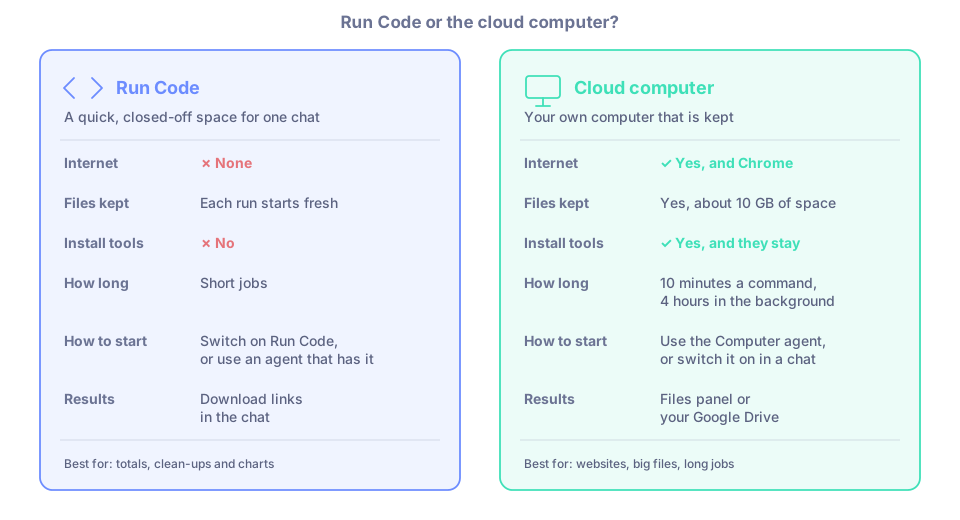
The two ways to run code, side by side.
Side by side
| Run Code | Cloud computer | |
|---|---|---|
| What it is for | Totals, clean-ups, charts and turning data into Excel, Word or PDF, from a file you attach | Websites, big files, video and audio, jobs that take a long time, work on your Google Drive files |
| Internet | ✗ None. It can't open links or download anything | ✓ Yes, the public internet, with a Chrome browser that stays signed in. Not Kapiva's internal systems |
| Files kept | Each run starts fresh. Files it makes are copied into the chat, so you can still open them later | Yes. Files stay on the computer (about 10 GB of space) until you delete them |
| How long a run can take | Short jobs | Up to 10 minutes for one command. Longer work runs in the background for up to 4 hours |
| Can it install tools? | No. It has Python, JavaScript and shell with common data, chart, Excel, Word and PDF tools | Yes, and what it installs stays. Python, ffmpeg, yt-dlp, ImageMagick, pandoc and git are ready |
| How you start it | Switch on Run Code in the Tools menu, or use an agent whose owner turned on Run Code (the Manas agent has it) | Use the Computer agent, or switch on Cloud Computer under MCP Servers in any chat |
| Where results appear | In the reply: a chart, a table, or a file to open or download | In the Files panel under the live view, or saved to your Google Drive |
When to use Run Code and when to use the cloud computer
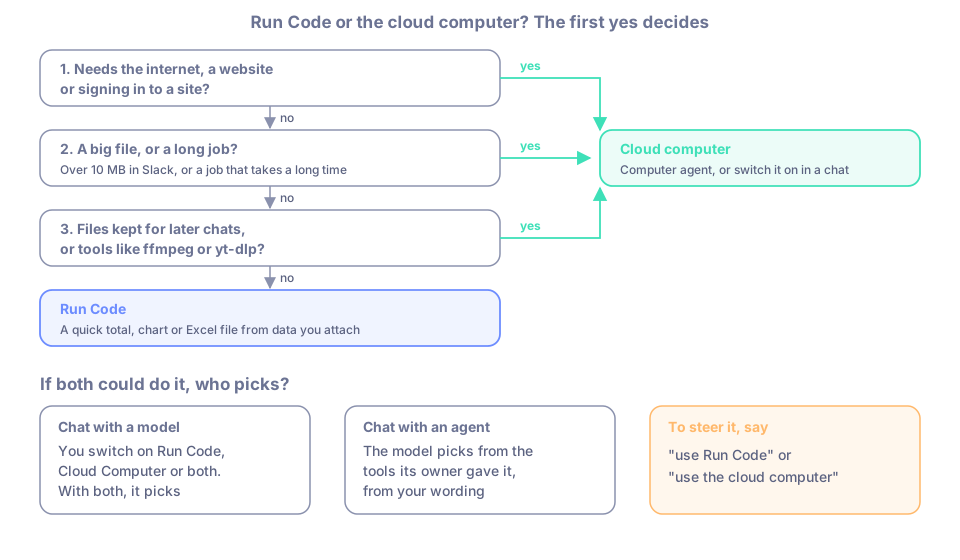
Ask yourself these questions in order.
A simple guide
Go down the list. The first "yes" decides.
- Does it need the internet, a website or signing in to a site? Use the cloud computer.
- Is the file big (over 10 MB in Slack), or will the job take a long time? Use the cloud computer.
- Do you want the files kept for later chats, or does it need tools like ffmpeg (video and audio) or yt-dlp (video downloads)? Use the cloud computer.
- Otherwise, for a quick total, chart, clean-up or Excel, Word or PDF file from data you attach, use Run Code.
Examples for Run Code:
- "Total the Amount column by month and draw a bar chart."
- "Remove duplicate rows and give me the cleaned file as Excel."
- "Turn this CSV into a one-page PDF report."
Examples for the cloud computer:
- "Open kapiva.in and list the products on the homepage with prices."
- "Download this YouTube video and cut the first 30 seconds into a clip."
- "Find the Diwali brief in my Drive and turn it into a PDF."
- "Convert all 40 videos in this folder to MP4." (a long background job)
If both are switched on, which does the model use?
- In a chat with a model, you decide what is switched on: Run Code in the Tools menu, Cloud Computer under MCP Servers, or both. If both are on, the model picks from what you ask.
- In an agent, the model picks from the tools the agent's owner gave it, following the agent's instructions. The Manas agent has Run Code but not the cloud computer. The Computer agent has the cloud computer but not Run Code. So with these two, the agent you pick decides.
- In an agent with both, there is no fixed rule either. The model decides from what you ask.
For work that needs signing in to sites, use the Computer agent. Its instructions tell it to stop and hand over to you for passwords, one-time codes and card numbers. A plain chat with Cloud Computer switched on doesn't have those instructions.
To steer it, say so in your message: "use Run Code" or "use the cloud computer".
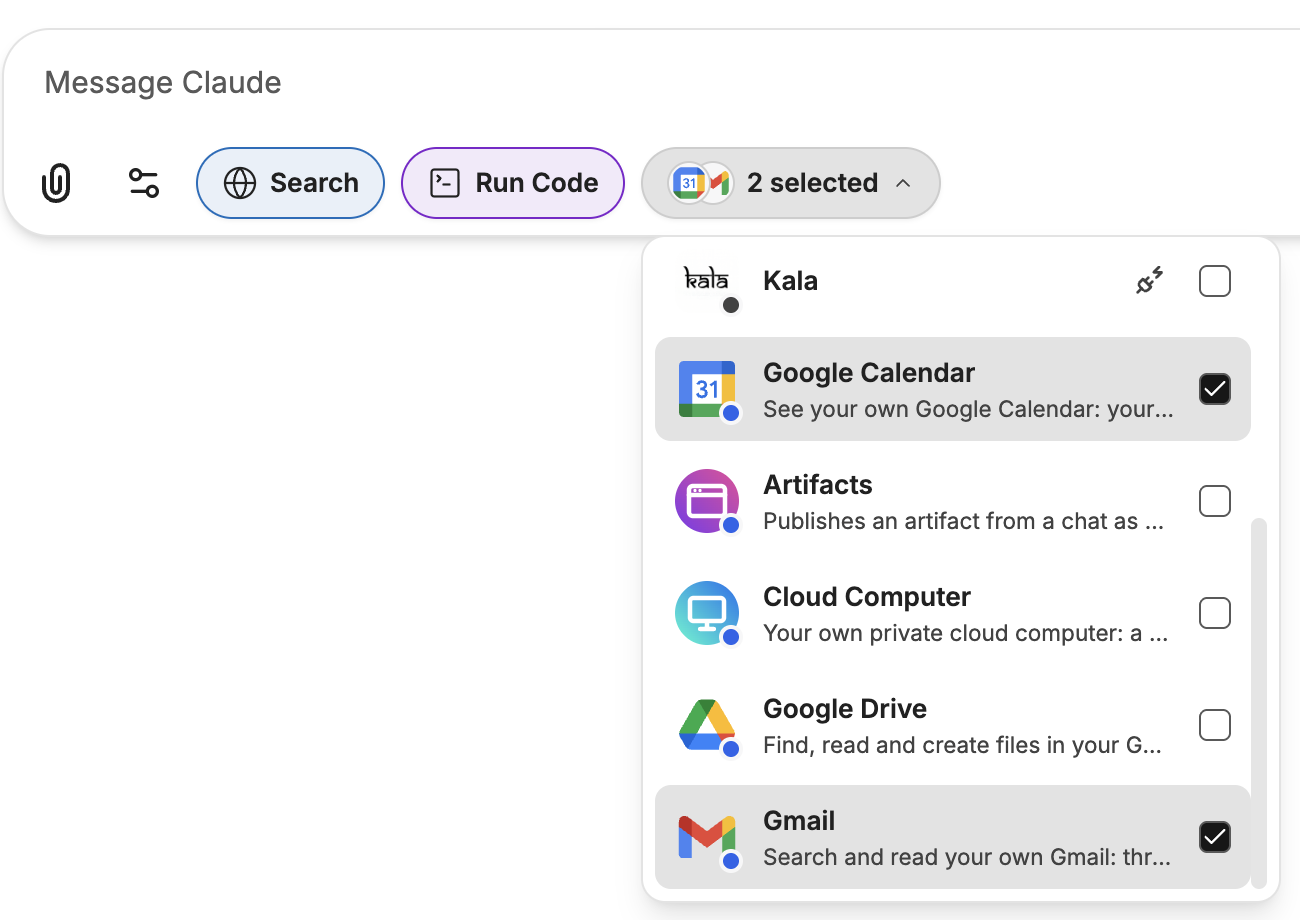
Cloud Computer in the chat's tool list, under the message box.
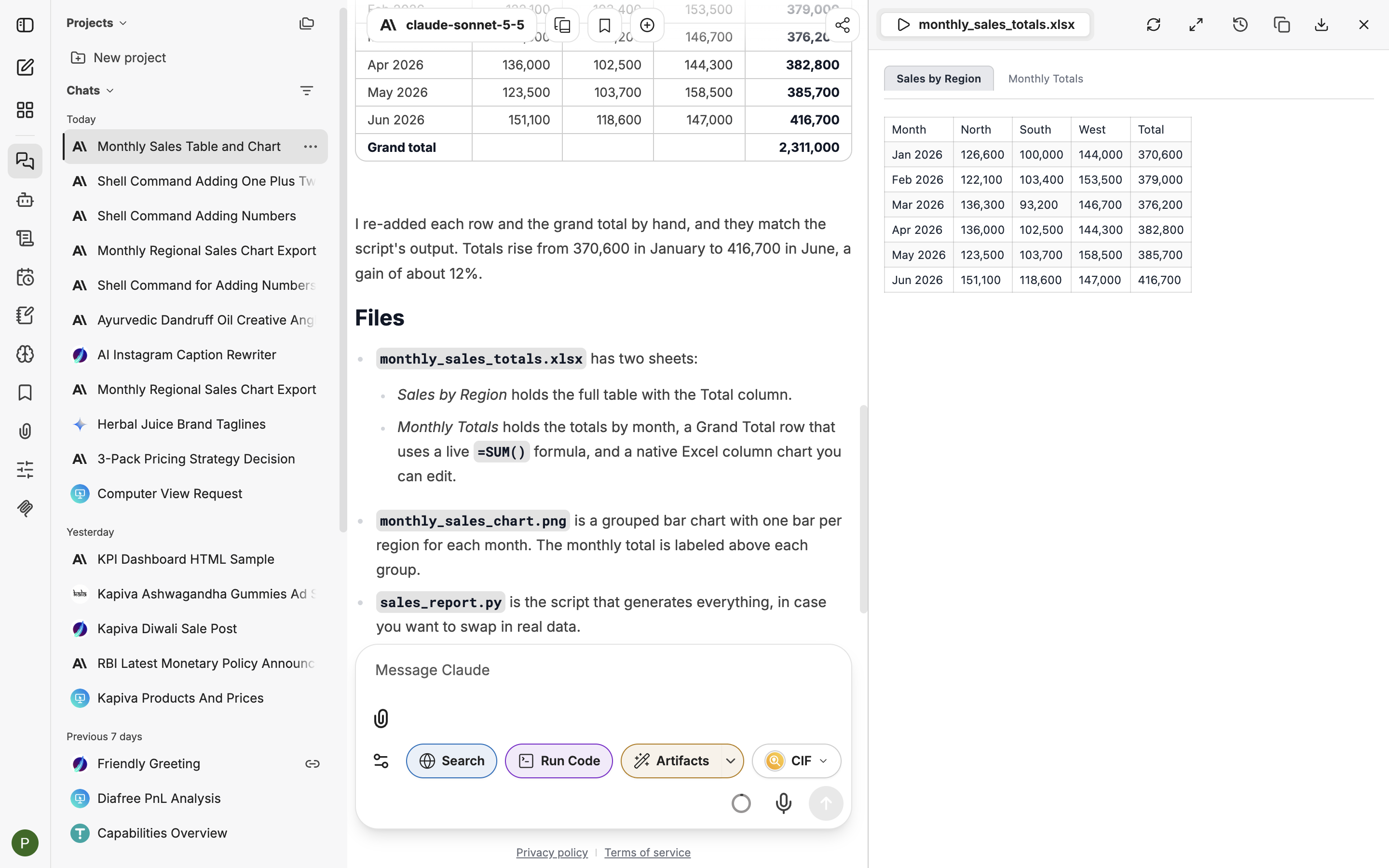
A Run Code answer: the results come back in the chat.
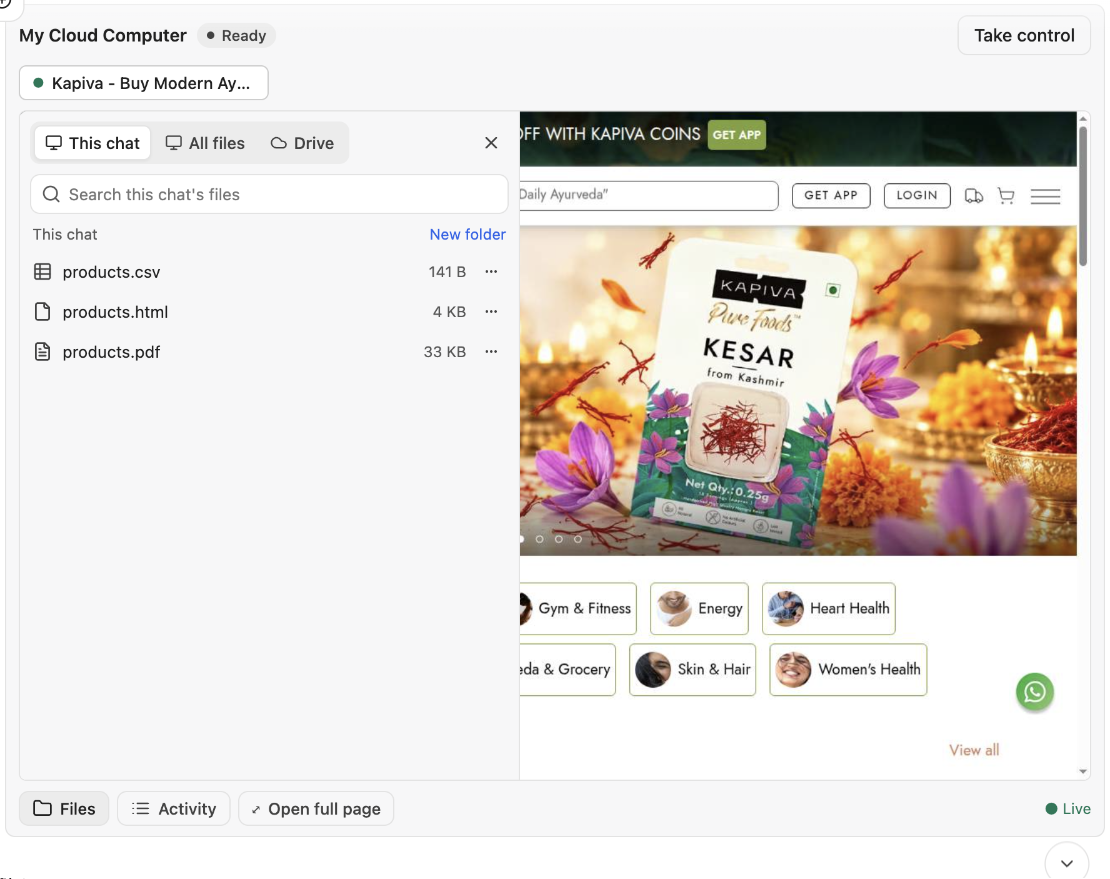
On the cloud computer, results are in the Files panel.
Where each one works
| Run Code | Cloud computer | |
|---|---|---|
| Web chat with a model | ✓ Switch on Run Code in the Tools menu | ✓ Switch on Cloud Computer under MCP Servers. For sign-ins, the Computer agent is safer |
| Web chat with an agent | ✓ Only if the agent's owner turned it on. The Manas agent has it | ✓ The Computer agent |
| Slack DM with Manas | ✓ The Manas agent can run code for you. Slack shows a card while it works | ✓ As you, on your own computer. Start a message with +computer, or just ask Manas and it hands the job to the Computer agent. To watch, press Manas web ↗ and ask "Show me the computer" |
| Slack channel | ✓ The Manas agent can run code there too | ✗ A channel has no computer. Ask in a DM with Manas instead |
Two things to know about the cloud computer in Slack:
- Each Slack message gets its own chat folder on the computer, because every Slack question starts a fresh chat. To use a file from an earlier message, name it ("use the clip you made before") or find it under All files.
- A file it makes comes back into the thread, with Save to my Drive, if it is 100 MB or less. A bigger file stays a link; ask Manas to save it to your Drive instead.
Files
In a web chat
Attach files with the paperclip. You choose how each file is sent:
- The option for the model itself: for images and PDFs, sent as they are.
- Upload as Text: Manas sends only the text. For Word and Excel files, and PDFs with ChatGPT.
- The option for code: hands the file to Run Code and switches Run Code on.
Images can be up to 5 MB each and PDFs up to 10 MB. All the files in a chat are sent again with every message, so a chat with many big files can hit a size limit. Files are kept in Kapiva's own private cloud storage, and their links keep working: Manas renews them for you. See Attach files.
Into and out of Run Code
Use the paperclip's option for code. Run Code can only work on files attached to the chat; it can't fetch a link. Anything it makes comes back in the reply to open or download, and stays with the chat. If a file says "Error downloading file", ask it to run the code again.
Into and out of the cloud computer
There is no upload button. Put your file in Google Drive first, then click Files → Drive → Import, or ask "use the brief in my Drive". To get files out:
- ⋯ → Save to Drive puts a copy in a
Manasfolder in your My Drive. - ⋯ → Copy link gives a download link for your laptop. It works for 5 minutes and for that file only.
Files up to about 2 GB can move between the computer and your Drive. See Files and Google Drive.
In Slack
- In: up to 5 files per question, 10 MB each. Manas reads up to 50,000 characters of text from them. You can also paste Google Drive links; Manas reads them as you, read-only.
- Out: up to 5 files per answer, 100 MB each, attached to the thread with Save to my Drive. Larger ones stay a link.
See Files and artifacts.
Limits at a glance
| Web chat | Run Code | Cloud computer | Slack | |
|---|---|---|---|---|
| Files in | Images 5 MB each, PDFs 10 MB | Files you attach with the option for code | From Google Drive, up to about 2 GB | 5 files per question, 10 MB each |
| Files out | In the chat | In the reply, to open or download | Save to Drive (up to about 2 GB) or a 5-minute Copy link | 5 files per answer, 100 MB each |
| Space | Kapiva's private storage | Nothing kept between runs | About 10 GB | — |
| Run time | — | Short jobs | 10 minutes a command, 4 hours in the background | 30 minutes for one answer |
I have a big file
- Over 10 MB in Slack. Put it in Google Drive and paste the link, or use the cloud computer on the web and import it from Drive.
- A large spreadsheet for totals or charts. Try Run Code first. If the chat gets slow or hits a size limit, start a new chat, or put the file in Drive and ask the Computer agent.
- A video, a large PDF or a folder of files. Put it in Google Drive and use the cloud computer. Save the results back to Drive.
- A big file the cloud computer made. Save it to Drive. In Slack, files over 100 MB stay a link.