
Attach files
Add images, PDFs, spreadsheets and documents to a chat and ask about them, and pick the right upload option for each model.
Attach a screenshot, an invoice or a report to a chat and ask about it: "What does this invoice say?" or "Summarise this report in five points". The model reads the file along with your question.
Your files are kept in Kapiva's own private cloud storage, not on a public site.
How to attach a file
Start a chat and pick a model. For PDFs, pick Claude.
Click Attach File Options (the paperclip) next to the message box, or press ⌘ ⇧ U.
Choose how the file is sent (see below), then pick your file. Wait for it to finish uploading.
Type your question and send it.

The upload choices in the paperclip menu.
Which upload option to choose
The paperclip menu offers a few ways to send a file:
- The option for the model itself (it names the provider): sends the file as it is. Use this for images and PDFs. It is the only way a scanned PDF, which is really a picture of pages, can be read.
- Upload as Text: Manas takes the text out of the file first and sends only the text. Use this for Word and Excel files, and for PDFs when you use ChatGPT.
- The option for code (it mentions the code environment): gives the file to Run code, for totals, cleaning and charts. Choosing it also switches Run Code on for that chat.
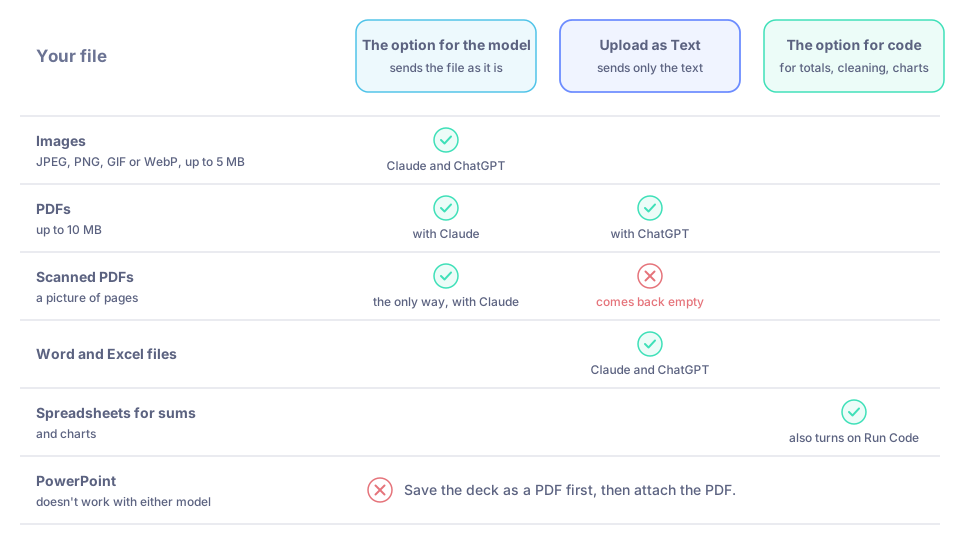
Which upload option to pick for each kind of file.
What works with which model
| File | Claude | ChatGPT | How to send |
|---|---|---|---|
| Images (JPEG, PNG, GIF or WebP, up to 5 MB each) | Reads them | Reads them | The option for the model |
| PDFs (up to 10 MB) | Reads them as they are | Can't read them sent as they are | The option for the model (Claude), or Upload as Text (ChatGPT) |
| Word and Excel files | Yes | Yes | Upload as Text |
| Spreadsheets for sums and charts | The option for code, with Run Code | ||
| PowerPoint | Doesn't work | Doesn't work | Save the deck as a PDF first |
Your files panel
Attach Files in the icon rail lists every file you have uploaded. You can attach one of them to a new chat from there instead of uploading it again, and delete files you no longer need. Deleting a file in Manas also deletes it from storage.
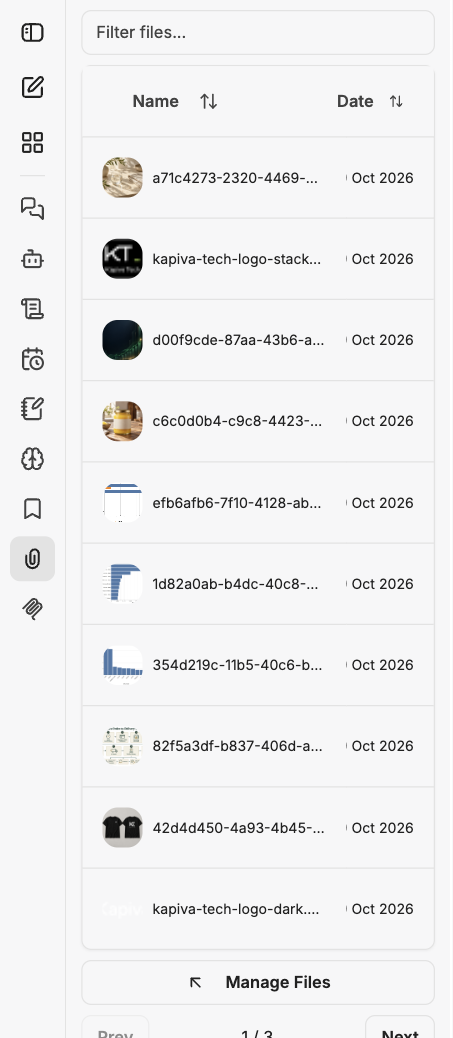
The Attach Files panel lists everything you have uploaded.
Good to know
- Files are sent again with every message in that chat. A chat with many large files gets slower, uses more of your allowance and can hit a size limit. Start a new chat for a new document.
- If Claude refuses a PDF (too many pages, password-protected, or too dense), every later message in that chat can fail too. Start a new chat, or attach the PDF again with Upload as Text.
- Remove the password from a PDF before you attach it.
- To work with files in your Google Drive, see Google Drive.
If something goes wrong
- "This request exceeds the bridge's 48MB limit…" The files in this chat add up to too much. Start a new chat, or turn off Resend Files in the conversation settings. If you only sent text, make it shorter.
- Every message in a chat fails after you attached a PDF. The PDF was refused. Start a new chat, or attach it again with Upload as Text.
- ChatGPT says a document was omitted. ChatGPT can't read files sent as they are. Attach it again with Upload as Text, or ask Claude.
- A scanned PDF comes back empty or as nonsense. It was sent as text, and a scan has no text in it. Attach it again with the option for the model itself, using Claude.
- A PowerPoint file fails. Save it as a PDF and attach the PDF.
- The upload itself fails. Check the size limits above and try again. If it keeps failing, tell the Manas team which file type and size.