
Your conversations
Find, rename, share, archive and delete chats, edit and regenerate answers, compare models side by side, and use temporary chats.
Every chat you have in Manas is saved, so you can come back to it later. This page covers what you can do with your chats.
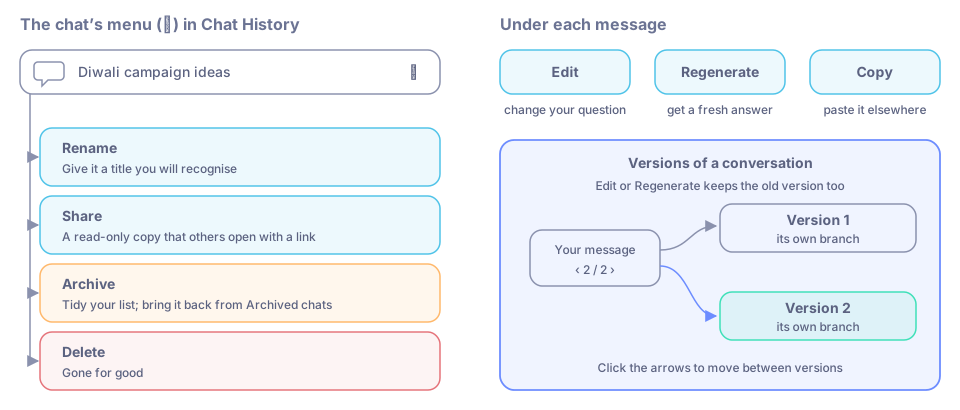
What you can do with a chat, and with each message in it.
Find a past chat
Click Chat History in the icon rail. Your chats are grouped by date: Yesterday, Previous 7 days, Previous 30 days and older. Click one to open it and carry on.
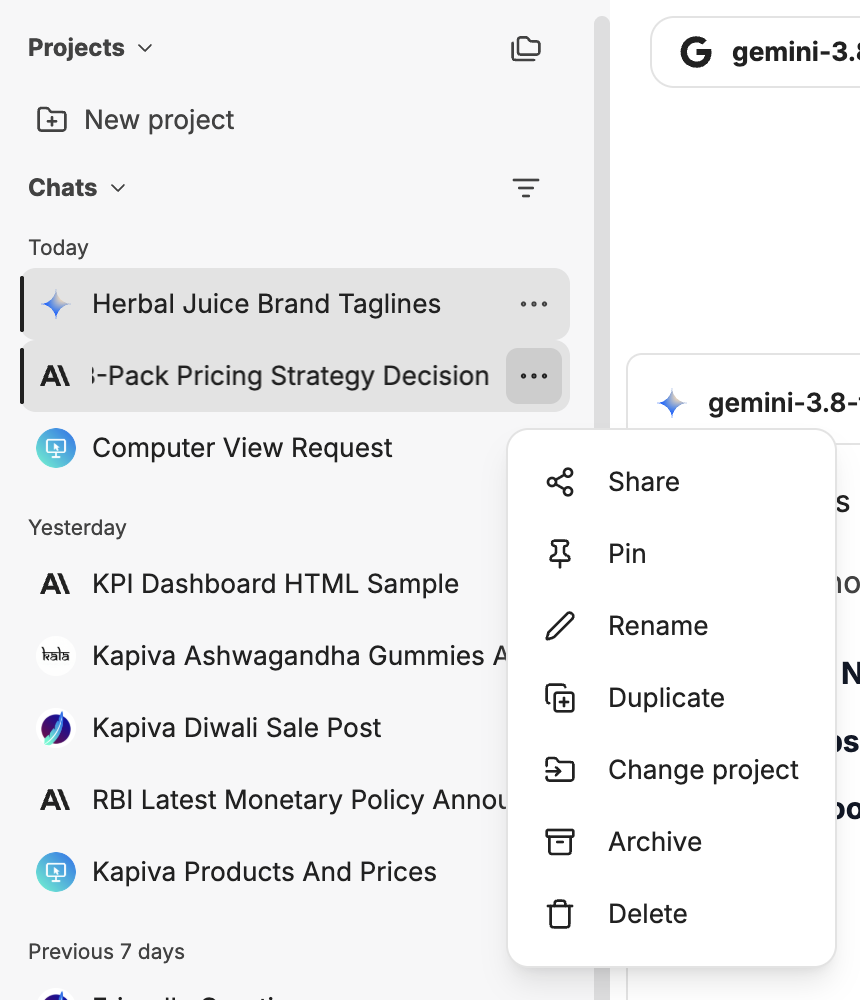
Chat History, with the menu of one chat open.
- Filter and sort chats changes the order and what is shown.
- Group related chats in a project. See Projects.
- Manas has no search through the text of your messages. Give chats clear titles, and use projects and bookmarks, so you can find them again.
Rename, share, archive or delete a chat
Hover over a chat in Chat History and click its menu (⋯). From there you can:
- Rename it. Manas gives each chat a short title on its own; change it to something you will recognise.
- Share it with a link (see below).
- Pin it, to keep it at the top of your list.
- Duplicate it, to try a different direction without changing the original.
- Change project, to move it into a project. See Projects.
- Archive it, to tidy your list without deleting it. Find archived chats again in your account menu under Archived chats, where you can bring them back.
- Delete it for good.
Bookmarks
Bookmarks are labels you put on chats, such as "Q3 plan" or "Ad copy". Add one from the bookmark button at the top of a chat. Click Bookmarks in the icon rail to see your labels and the chats under each one.
Share a chat
Sharing makes a read-only copy of the chat that others can open with a link.
In Chat History, open the chat's menu (⋯) and choose Share.
Create the link and copy it.
Send the link to your colleague.
- The link shows the chat as it was when you shared it. Later messages are not added unless you update the link.
- A chat with an active link shows a link icon in Chat History.
- You can delete the link from the same place at any time.
Think before you share
Anyone who has the link can read the shared copy. Check the chat for anything private before you share it.
Edit, regenerate and copy
Under each message are small buttons (hover to see them):
- Edit your own message to change the question. Manas answers the new version.
- Regenerate an answer to get a fresh one, from the same model or after switching model.
- Copy an answer to paste it elsewhere.
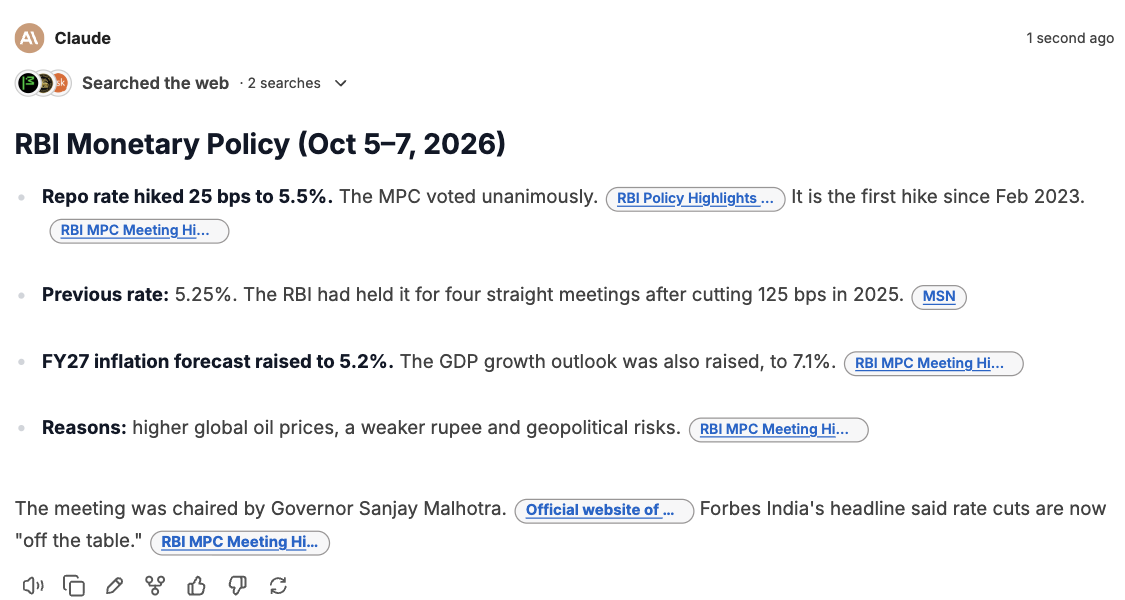
The buttons under a message, and the arrows to move between versions.
Versions of a conversation
When you edit a message or regenerate an answer, Manas keeps the old version too. Small arrows (for example ‹ 2 / 2 ›) appear next to the message. Click them to move between versions. Each version carries on as its own branch of the conversation.
Compare models side by side
Click Add multi-conversation at the top of a chat to add a second model. Your next message goes to both, and their answers appear side by side, so you can compare them. Each answer uses your allowance.
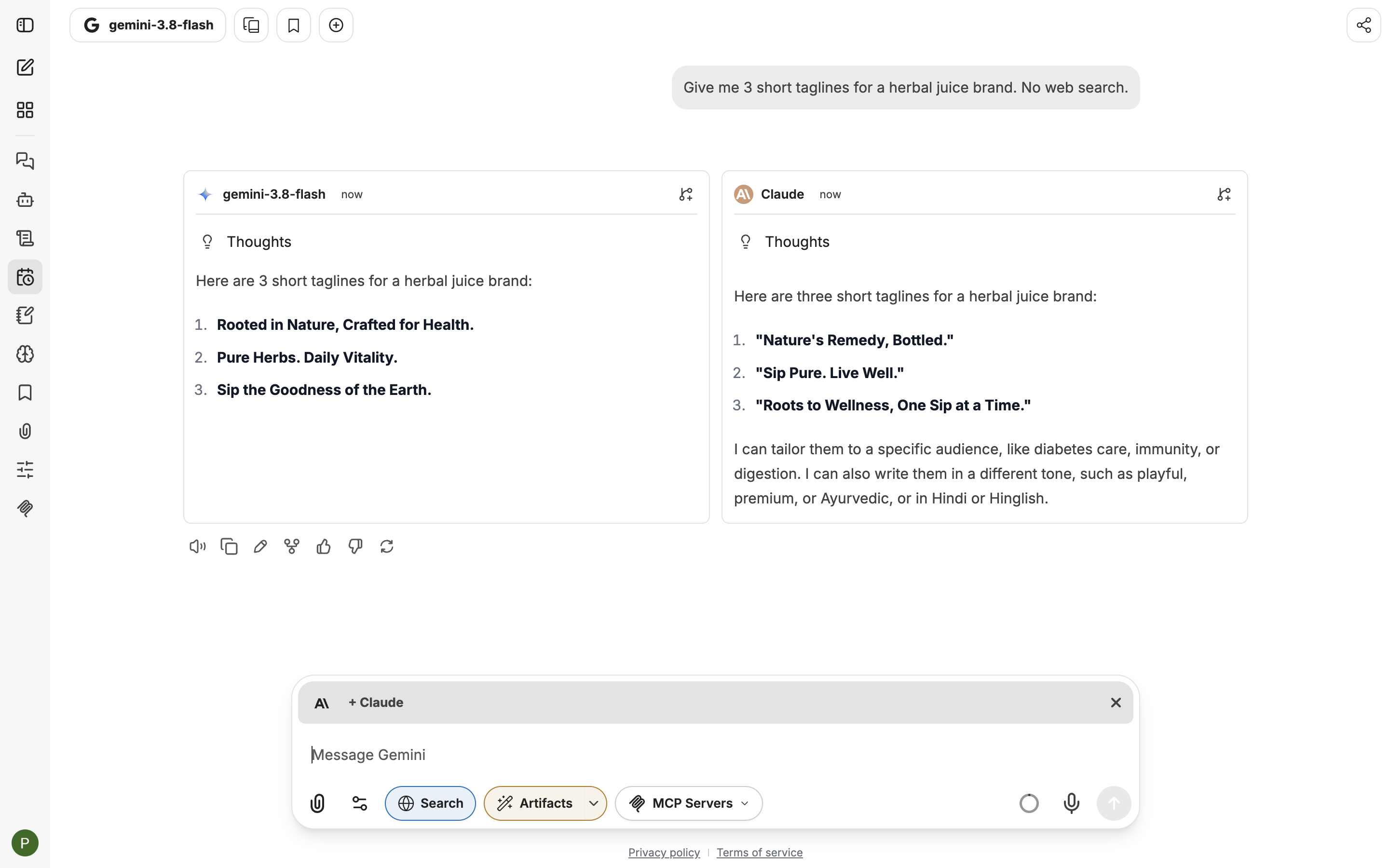
Two models answering the same question side by side.
Temporary Chat
Switch on Temporary Chat at the top of a chat (or press ⌘ ⇧ Y) for a conversation that is not kept in your Chat History. Use it for a quick one-off question you don't need later.
Voice input
Click Use microphone in the message box, speak, and your words appear in the box. Check them, then send.
Good to know
- Your chats are private to you unless you share a link.
- Conversations you have with Manas in Slack don't appear in your chat history. See Manas in Slack.
- Long chats cost more of your allowance with every message. Start a new chat for a new topic.