
Build your own agent
Create an agent for a job you do often, give it instructions, a model and tools, and test it.
Anyone at Kapiva can build an agent. If you keep pasting the same instructions into chats ("you are a copy editor for our brand…"), turn them into an agent once and reuse it.
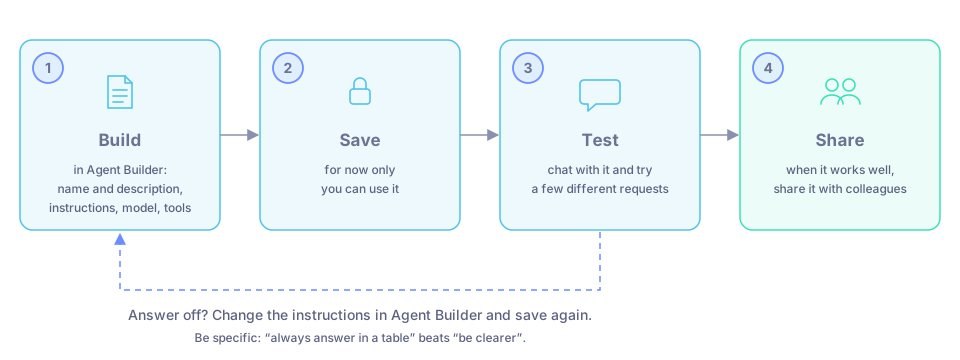
Build, save, test, share. If the answers are off, change the instructions and save again.
Before you start
Write down, in a few lines:
- The job. What the agent is for, in one sentence.
- How it should answer. Tone, length, format, what to always or never do.
- What it needs. The web? Your spreadsheets? Google Drive?
Create the agent
Open Agent Builder
Click Agent Builder in the icon rail on the left. The builder opens in a panel next to the chat.
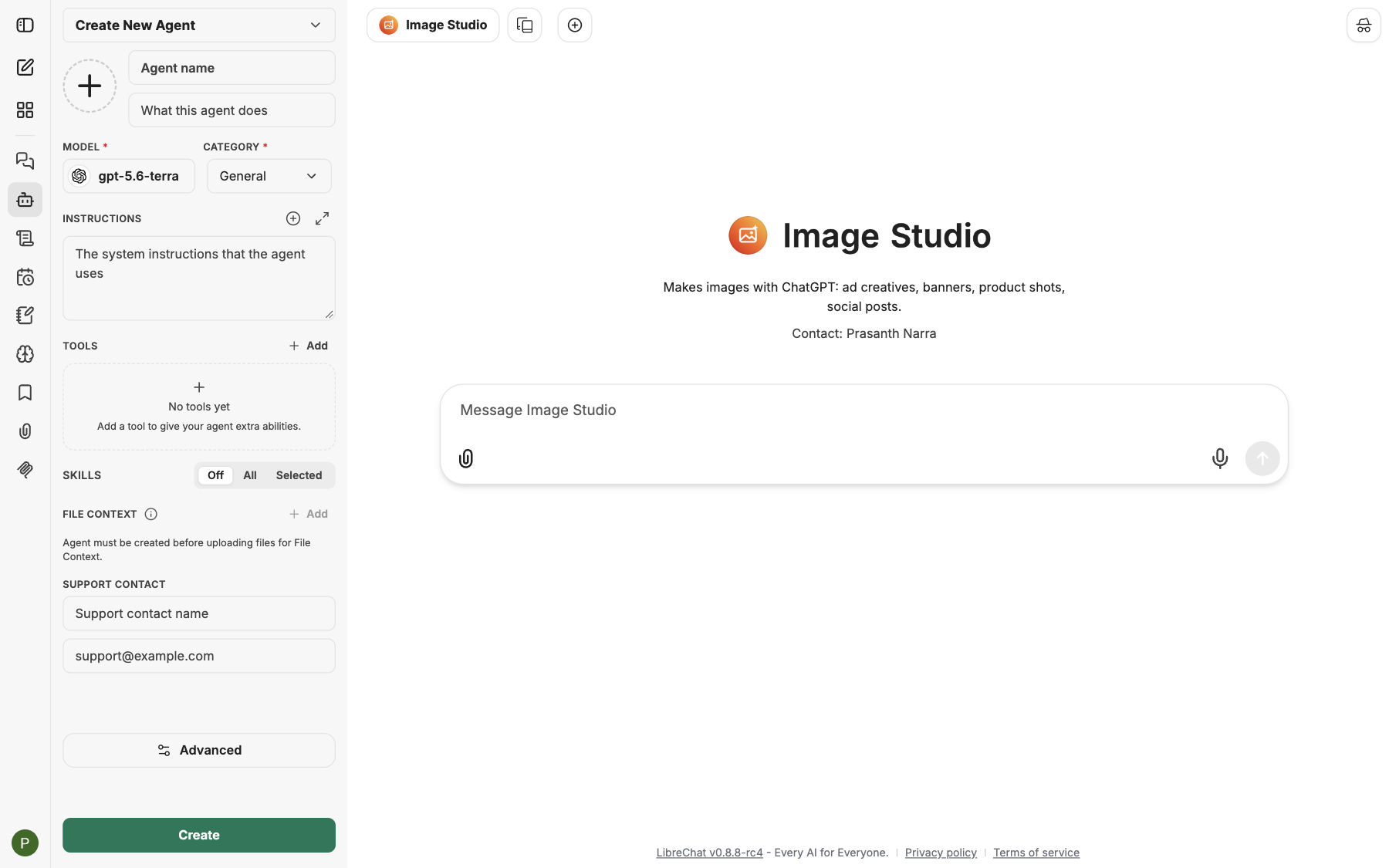
Agent Builder opens next to the chat, so you can test as you go.
Name and describe it
Give it a clear name and a one-line description of what it does. People see both in the Agent Marketplace and on the agent's start screen, and Manas reads the description to decide when to hand a request to your agent.
You can also upload a picture for it and choose a category, such as General, Finance or Sales. The category decides under which tab of the Agent Marketplace people find it.
Write the instructions
The instructions are what the agent is for and how it should answer. Write them the way you would brief a new colleague. For example:
You write Instagram captions for Kapiva products. Keep each caption under 150 characters, warm and simple, with one emoji at most. Never state health claims or prices unless I give them to you. Give three options each time.
Pick a model
Choose the model the agent uses: Claude, ChatGPT or Gemini. Only models Manas offers are listed. See Choose a model.
Switch on tools
Switch on only the tools the job needs:
| Tool | Use it when the agent should |
|---|---|
| Web search | Look things up on the web and show sources. |
| Run Code | Work with numbers and files: total a column, clean a spreadsheet, draw a chart. |
| File search | Answer from documents you upload to the agent, such as a brand guide. |
| Connected tools | Use a tool from MCP Settings, such as Google Drive, CIF or Tattva. |
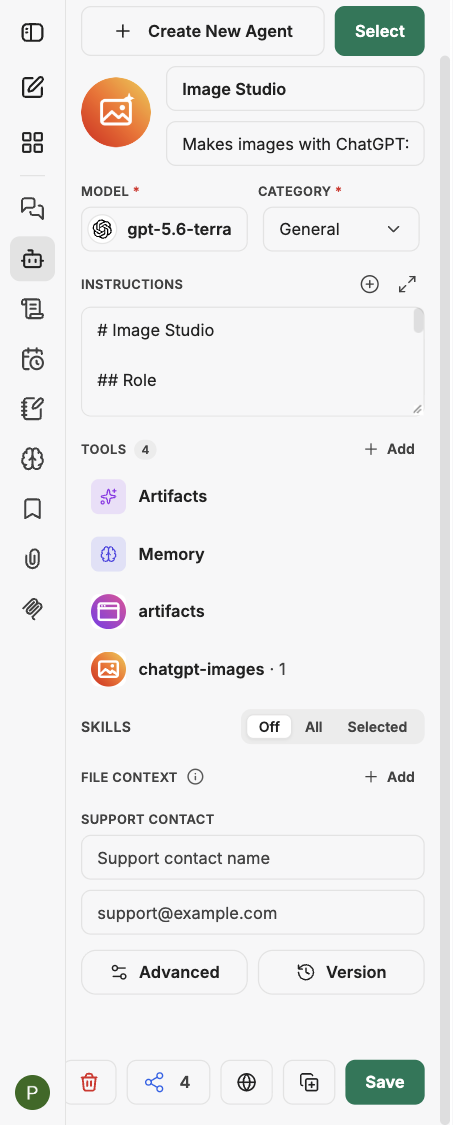
Choose the model and the tools in Agent Builder.
Agents can also use Skills: reusable packages of instructions they load when relevant. See Skills.
Save it
Save the agent. For now only you can use it.
Test it
- Start a chat with your agent and ask it the kind of thing people will ask.
- If the answer is off, change the instructions in Agent Builder and save again. Be specific: "always answer in a table" works better than "be clearer".
- Try a few different requests, including one it should refuse or ask about.
When it works well, share it.
Good to know
- Your agent uses the daily allowance of whoever chats with it. See Usage limits.
- People who use your agent can't change it. Only you, and people you let edit it, can.
- In a chat with an agent, the web search and Run Code switches under the message box are not shown. The agent uses the tools you set up.
- When a connected tool gets new features, saved agents don't pick them up by themselves. Open the agent in Agent Builder and add them.
- To have your agent run a prompt on a schedule, see Scheduled chats.