
Files and Google Drive
Find, download, tidy and share the files on your cloud computer, and move files to and from Google Drive.
Click Files under the live view. Three tabs say where the files live:
| Tab | Where | What is in it |
|---|---|---|
| This chat (computer icon) | Your cloud computer | This chat's own folder: its downloads, results and working files. It starts empty. |
| All files (computer icon) | Your cloud computer | Every folder on your computer, from every chat, and any folders you made. |
| Drive (cloud icon) | Your Google Drive | Your My Drive and shared drives. |
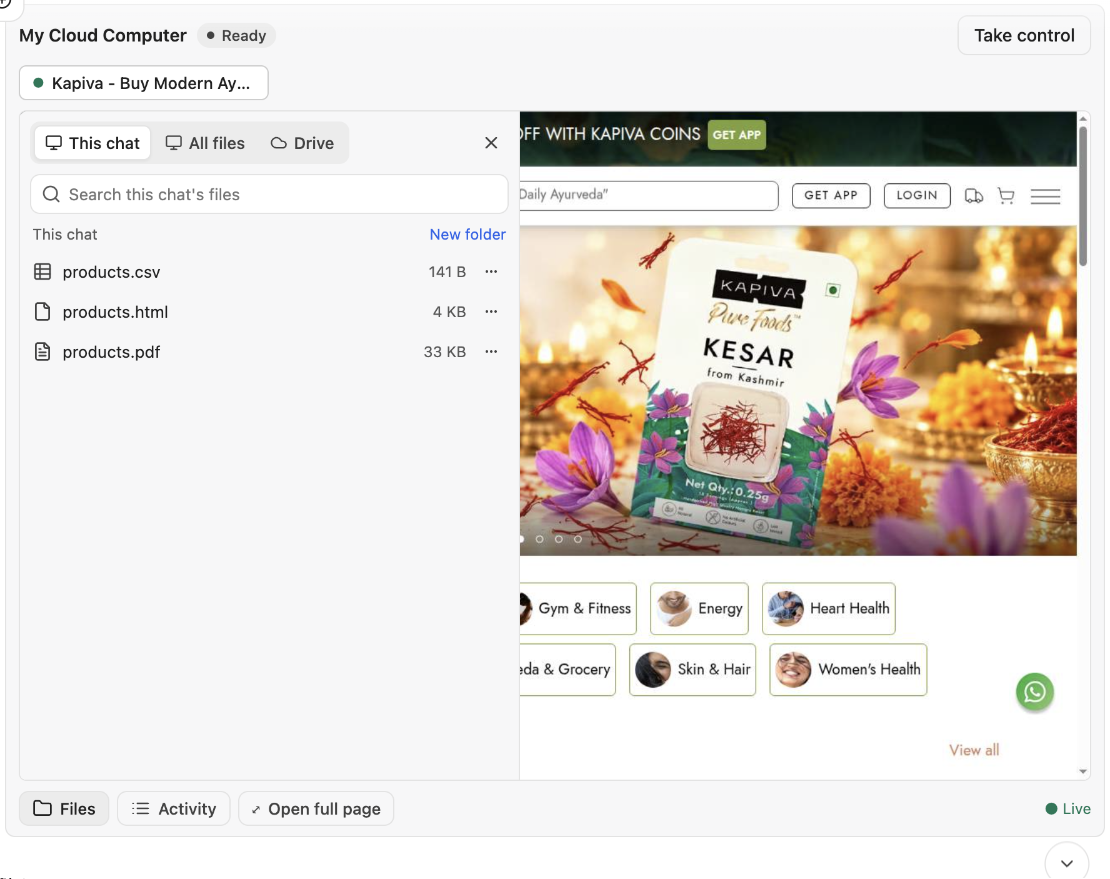
The Files panel, on This chat.
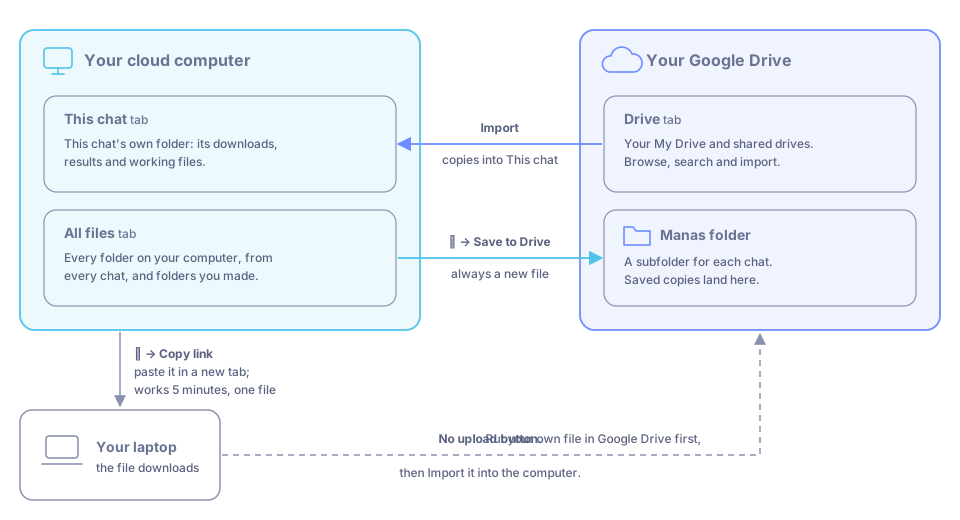
Where your files live and how they move between the computer, your Drive and your laptop.
Each chat has its own folder
The agent puts each chat's files in that chat's own folder, inside a folder called chats. That keeps two chats working at the same time from overwriting each other.
Nothing is walled off between chats. All files shows every folder, so in a new chat you can say "use the logo from yesterday's chat".
Find a file
The search box at the top searches the tab you are on:
- This chat: file names, in every subfolder.
- All files: anywhere in the file's path. Results show their folder.
- Drive: names in your Drive.
Download a file to your laptop
Click ⋯ on the file, then Copy link.
Paste the link into a new browser tab. The file downloads.
The link works for 5 minutes and only for that file.
Tidy your files
Click ⋯ on a file for:
- Copy link: a download link (see above).
- Save to Drive: a copy in your Google Drive (see below).
- Rename: type the new name and press Enter (Esc cancels).
- Move to…: pick a folder, or type a new folder path and it is made for you. It never replaces a file that is already there.
- Delete: asks first, for example "Delete report.csv? This can't be undone." For a folder it says how many items go with it.
Folders have Rename, Move to… and Delete. New folder (top right) makes a folder in the one you are looking at.
You can also ask the agent: "Put all the clips in a folder called diwali-reels."
Files a website downloads
When a site's Export or Download button is pressed, by the agent or by you while in control, the file is saved in the chat's folder under downloads. The agent tells you which file it got. Files over 1 GB are not saved.
Give the computer your own file
There is no upload button. Put the file in Google Drive first, then either:
- open Files → Drive, find the file and click Import, or
- ask the agent: "use the brief in my Drive".
The file lands in This chat. Files that came from Drive show a small cloud next to their name. The agent can then attach the file to a website's upload field for you ("upload my CV to this job form").
Google Drive in the live view
Connect once
Open Files → Drive and click Connect Google Drive. This copies a link.
Paste the link into a new browser tab. Sign in with your @kapiva.in Google account and allow access.
Go back to the chat. The Drive tab opens by itself a few seconds later.
You do this once. It is the same connection as the Google Drive connector: connect in one place and you are connected everywhere, including Gmail and Google Calendar.
Browse and import
- Browse My Drive (folders first; the path at the top takes you back) or Shared drives, or search by name. Each file shows when it changed and its size.
- Import copies a file into This chat. Google Docs, Sheets and Slides arrive as Word, Excel and PowerPoint files. The row says when it is done (for example In This chat as Brief.docx), or why not.
- Open in Drive copies the file's Drive link. Paste it into a new tab.
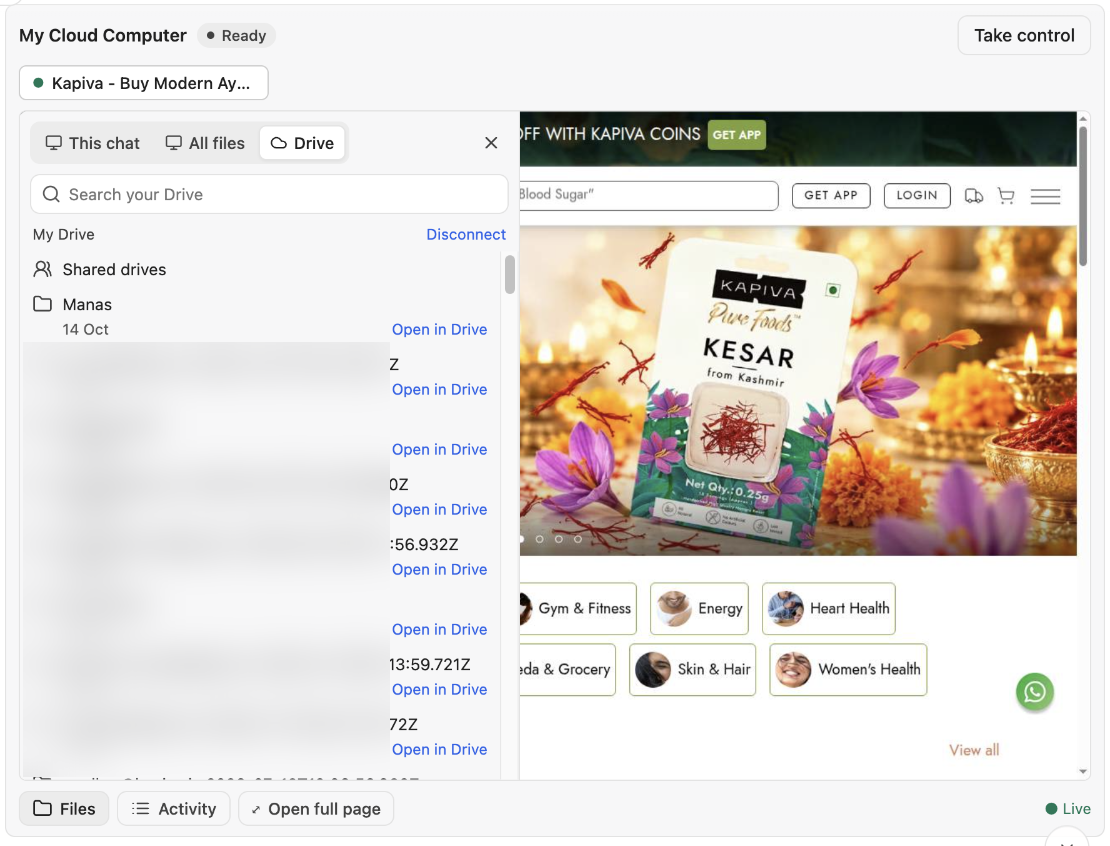
The Drive tab, connected.
Save to Drive
In This chat or All files, click ⋯ → Save to Drive on a file. A copy goes into a Manas folder in your My Drive, in a subfolder for this chat (made the first time). Manas shows where it saved it, with an Open in Drive link.
Save to Drive always makes a new file; it does not change the original in Drive.
Through the agent
Ask in plain words:
- "Find the Diwali brief in my Drive and turn it into a PDF."
- "Save the clips to my Drive in a folder called Reels."
The agent can search your Drive (including shared drives), copy a file onto the computer, and save a computer file to Drive. If Drive is not connected yet, it gives you the same Connect Google Drive link.
Disconnect
Click Disconnect (top right of the Drive tab), or ask the agent to "disconnect my Google Drive". This removes Manas's access to your Drive.
Good to know
- Import does not work while you are in control. Hand back first.
- Lists refresh when you open them or change something in the panel. If the agent just made a file, close and open Files again.
- Your Drive access never goes onto the computer. Manas keeps it, encrypted, and moves files for you.
- Big files are fine. Files up to about 2 GB can be copied between the computer and your Drive, or uploaded into the computer.
- About 10 GB of space. That is for your files and any tools the agent installs.
If something goes wrong
- Import says to hand back to the agent first. You are in control. Click Hand back to agent, then Import again.
- The Drive tab says to show your computer again. The live view is older than the Drive tab. Ask "Show me the computer".
- A download link doesn't work. It is older than 5 minutes or already used. Click ⋯ → Copy link again.