
Prompts and presets
Save requests you use often as prompts, and save your favourite model and settings as presets.
If you ask for the same kind of thing again and again, save it once and reuse it.
- A prompt is saved text for the message box, such as your standard brief for ad copy.
- A preset is a saved model choice with its settings, such as "Claude for long reports".
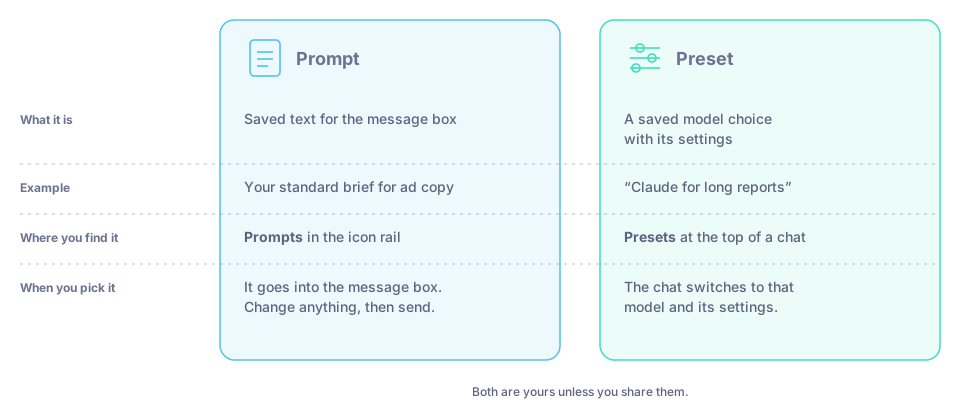
A prompt saves what you ask; a preset saves which model answers and how.
Prompts
Save a prompt
Click Prompts in the icon rail.
Create a new prompt. Give it a short name and write the text, as you would type it in a chat.
Save it.
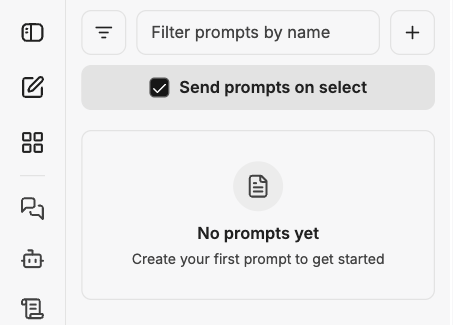
Your saved prompts, in the Prompts panel.
Use a prompt
Open Prompts and pick the prompt to put it in the message box. Change anything you need, then send.
Tip: write prompts with gaps you fill in each time, for example "Write three Instagram captions for [product], under 30 words each, for [audience]."
Presets
Save a preset
Start a chat and pick the model you want in Select a model.
Set it up the way you like it.
Click Presets at the top of the chat and save the current setup as a new preset, with a name you will recognise.
Use a preset
Click Presets at the top of a chat and pick one. The chat switches to that model and its settings.
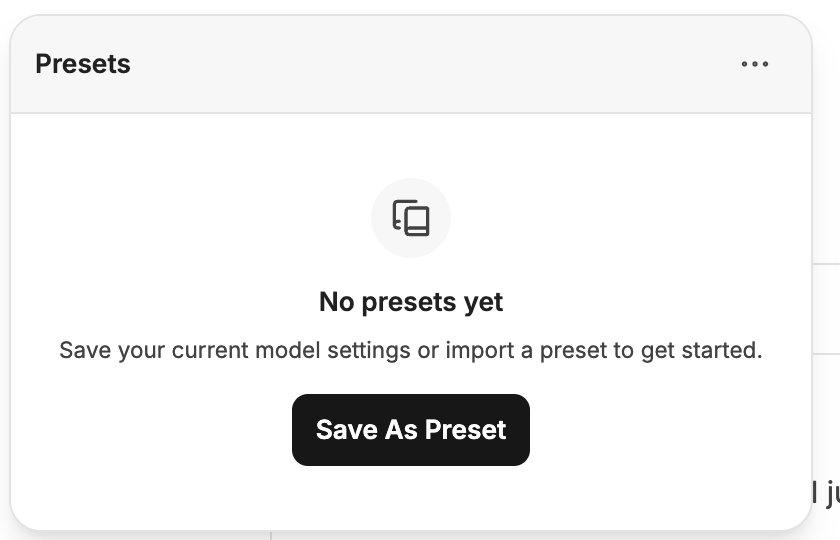
The Presets menu at the top of a chat.
Good to know
- Prompts and presets are yours unless you share them.
- For a full assistant with instructions, tools and a name of its own that others can use, build an agent instead. See Build your own agent.
- For instructions an agent should load only when they are needed, see Skills.