
Scheduled chats
Have an agent run a prompt for you automatically, every hour, day or week.
A scheduled chat runs a prompt for you on a timetable. Every time it runs, an agent starts a new chat with your prompt, so the answer is waiting for you. For example: "Every weekday at 9:00, summarise yesterday's top news about Ayurveda brands in India."
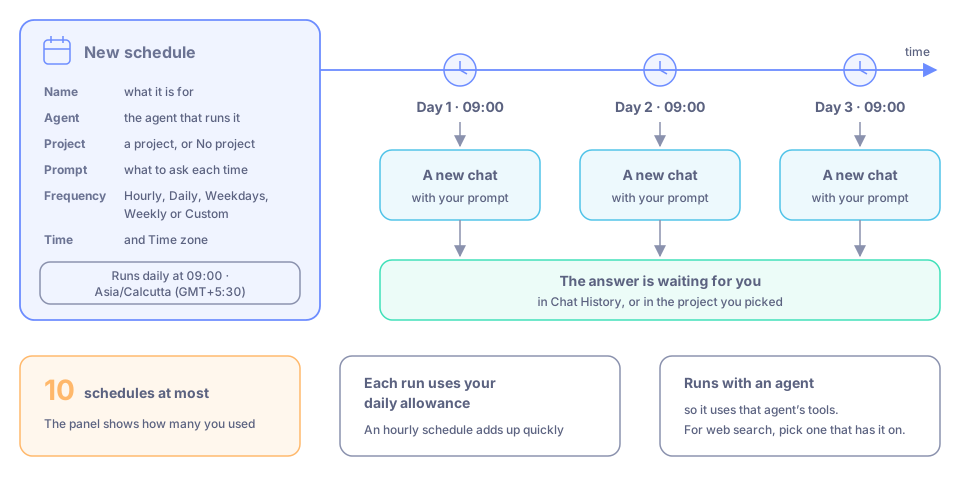
Each run of a schedule starts a new chat with your prompt.
Want the answer posted in Slack, in your DM or a channel? See Scheduled chats in Slack.
Create a schedule
Click Scheduled chats in the icon rail, then +.
In New schedule, fill in:
- Name: what the schedule is for.
- Agent: the agent that runs it (Select Agent).
- Project: a project to keep its chats in, or No project.
- Prompt: what to ask each time.
Choose how often under Frequency: Hourly, Daily, Weekdays, Weekly or Custom. Then set the Time and the Time zone (for example Asia/Calcutta).
Check the summary line, for example "Runs daily at 09:00 · Asia/Calcutta (GMT+5:30)", and click Create.
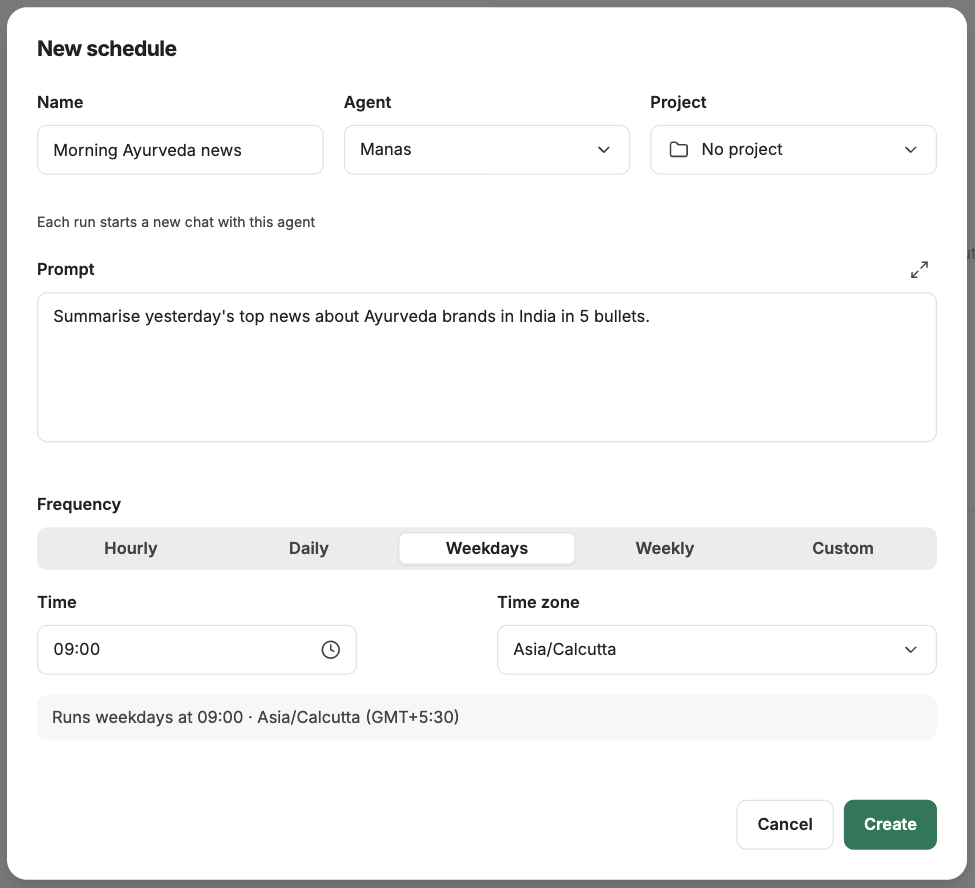
The New schedule form.
See the results
Each run starts a new chat with the agent. Find it in Chat History, or in the project you picked.
Good to know
- You can have up to 10 schedules. The panel shows how many you have used, for example "0 of 10 schedules used".
- Each run uses your daily allowance, just like a chat you start yourself. An hourly schedule adds up quickly.
- A schedule runs with an agent, so it uses that agent's tools. To have it search the web, pick an agent that has web search on.
- Write the prompt so it makes sense on its own each time: say the period ("yesterday", "last week") and the format you want back.
If something goes wrong
- A run says your allowance is used up. The schedule ran when your balance was empty. It works again after your next top-up. See Your daily allowance.
- You can't add a schedule. You may have reached 10. Delete one you no longer need.