
A tour of the screen
Where everything is in Manas: the icon rail, your chat history, the model menu, the message box and your account.
This page walks you round the Manas screen once, so you know where to find things later.
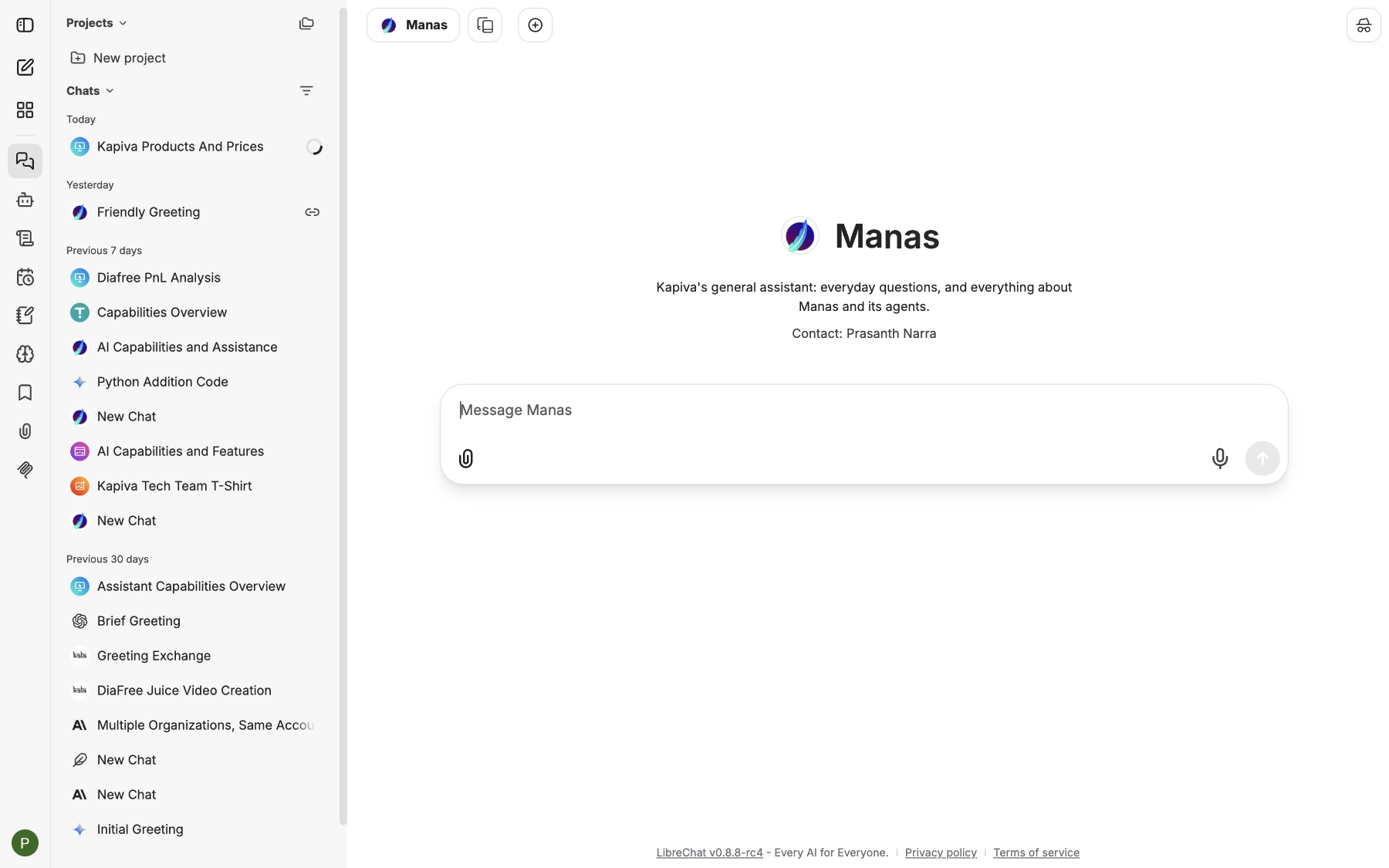
The Manas screen: the icon rail and your chats on the left, the conversation on the right.
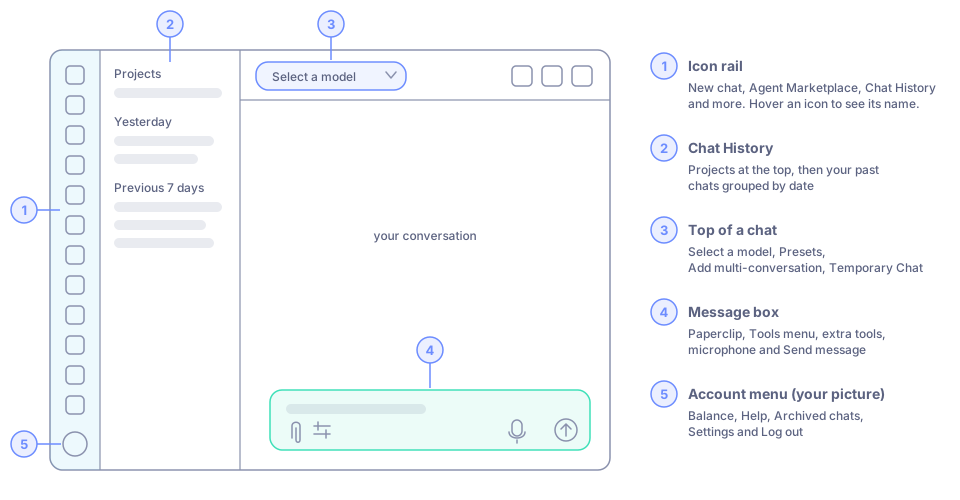
The five areas of the screen. Each one has its own section below.
The icon rail on the left
A narrow column of icons runs down the left edge. Hover over an icon to see its name. From top to bottom:
| Icon | What it does |
|---|---|
| Close sidebar | Hides the side panel for more room. Click again to bring it back. |
| New chat | Starts a fresh conversation. |
| Agent Marketplace | Ready-made agents you can chat with. See The Agent Marketplace. |
| Chat History | Your past chats and projects. See Your conversations. |
| Agent Builder | Make your own agent. See Build your own agent. |
| Skills | Reusable instructions that agents load when they need them. See Skills. |
| Scheduled chats | Have an agent run a prompt for you on a schedule. See Scheduled chats. |
| Prompts | Your library of saved prompts. See Prompts and presets. |
| Memories | What Manas knows about you; see, add, change and delete it here. See Memory. |
| Bookmarks | Labels you put on chats to find them again. See Your conversations. |
| Attach Files | All the files you have uploaded. See Attach files. |
| MCP Settings | The connected tools available in Manas, such as Kala, CIF, Google Drive, Gmail and the cloud computer. Tools that need their own sign-in show Connect, Reconnect or Revoke. To use one in a chat, tick it in the tool list under the message box. |
| Account Settings | Your picture, at the bottom. Opens your account menu. |
Chat History
Click Chat History to see your past chats. They are grouped by date (Yesterday, Previous 7 days, Previous 30 days). Click one to open it and carry on where you left off.
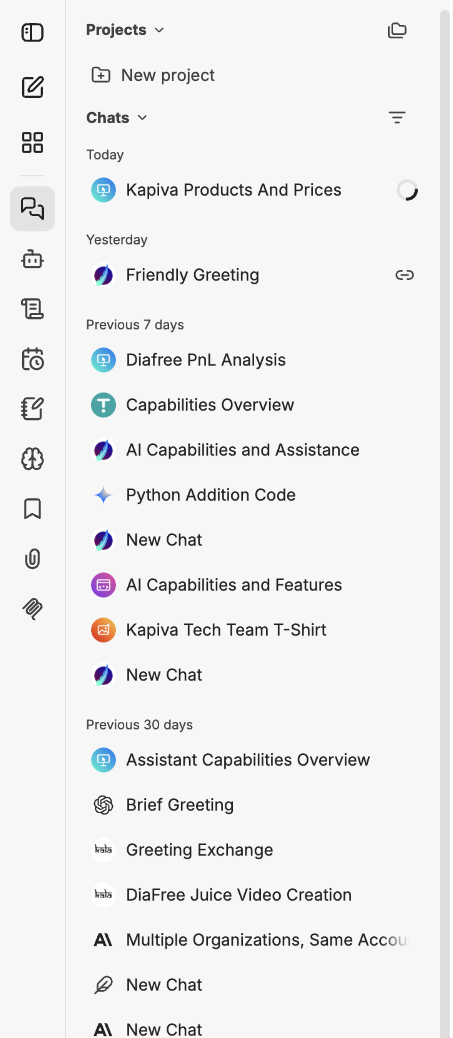
Chat History: projects at the top, then your chats by date.
- Projects at the top group related chats together. See Projects.
- Filter and sort chats changes the order and what is shown.
- Each chat gets a short title on its own, written by Manas from your first message. You can rename it.
- A chat you have shared with a link shows a link icon.
The top of a chat
| Control | What it does |
|---|---|
| Select a model | The model menu. It decides who answers you: Claude, ChatGPT, Google (Gemini) or one of the Agents. See Choose a model. |
| Presets | Saved model choices and settings you can reuse. See Prompts and presets. |
| Add multi-conversation | Ask two models the same thing and compare their answers side by side. See Your conversations. |
| Temporary Chat | A chat that is not kept in your history. See Your conversations. |
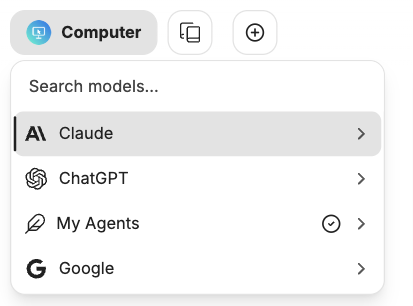
The model menu. Open a row to pick a model or an agent.
You can switch model in the middle of a chat. The next answer comes from the new model, with the same conversation.
The message box
The message box sits at the bottom of the chat. Type, then press Enter to send (Shift + Enter adds a new line). Around it:
- Attach File Options (the paperclip) attaches files: images, PDFs, spreadsheets and more. See Attach files.
- The Tools menu (the sliders icon) has switches for Web Search and Run Code. See Web search and Run code.
- The MCP menu lists extra tools you can switch on for a chat, such as ChatGPT Images. See Make images.
- Use microphone lets you speak instead of type. Click it, talk, and your words appear in the box.
- Send message sends it. While an answer is being written, it turns into a stop button.

The message box. The tools sit right next to it.
In an agent chat
When you chat with an agent, the Web Search and Run Code switches are not shown. The agent uses the tools its owner set up.
The Agent Marketplace
Manas is also Kapiva's Agent Marketplace: ready-made assistants built for specific jobs, such as Kala for scripts and videos and Tattva for questions about business data.
- Click Agent Marketplace in the icon rail to see the agents shared with you. Use Search agents... or the category tabs (General, Human Resources, Research & Development, Finance, IT, Sales, After Sales, All) to find one, then click its card to start a chat. Each card shows the agent's picture, name, category, a short description and Contact: with its owner.
- You can also pick an agent from Select a model: open Agents and choose one.
- An agent's start screen shows its picture, name, a short description and who to contact about it.
- The public home page, manas.kapiva.tech, also shows the marketplace: the agents you can use today and what is coming. When you are signed in it skips straight to your chats. To see it anyway, use manas.kapiva.tech/?home.
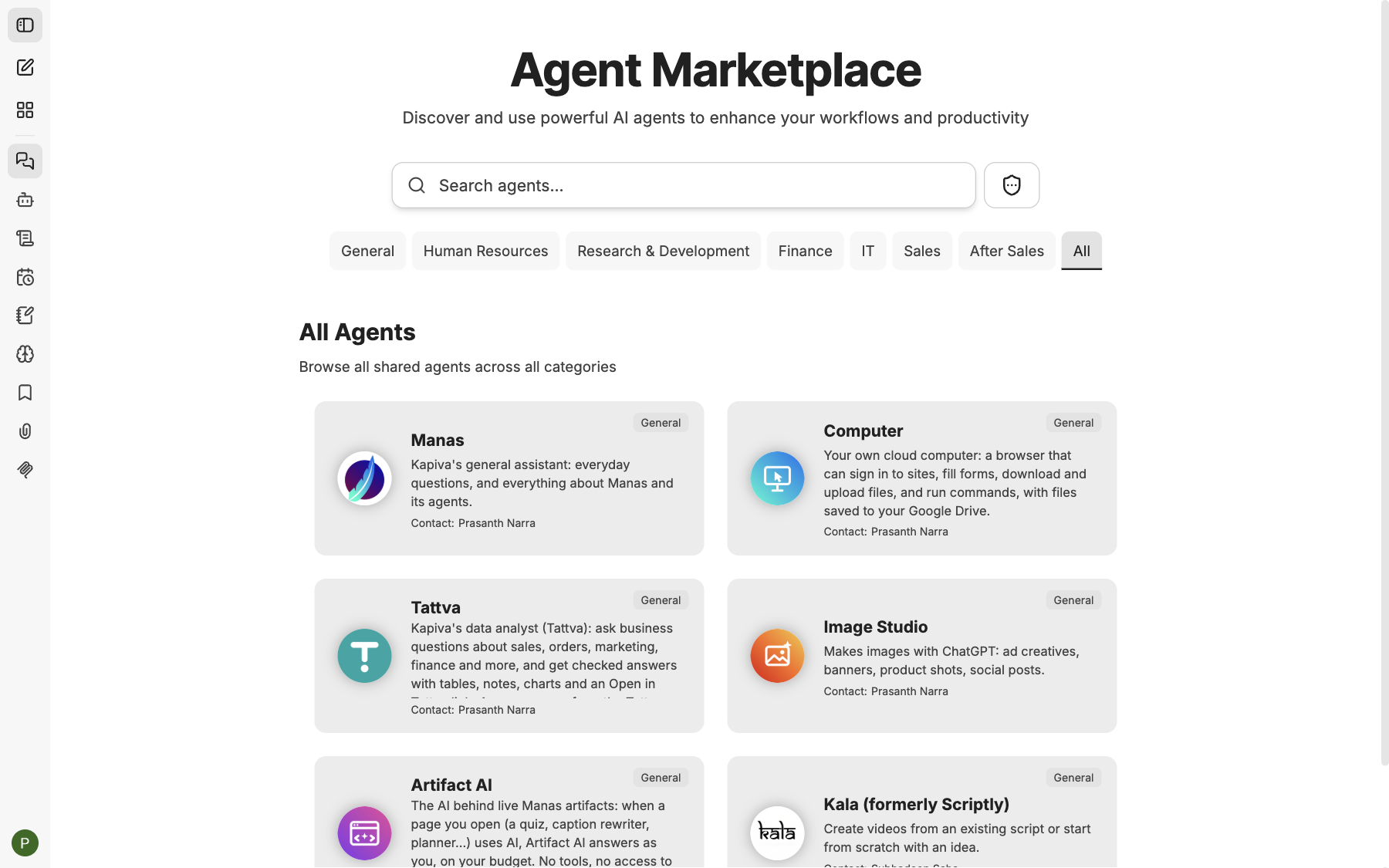
The Agent Marketplace inside Manas.
Your account menu
Click your picture (Account Settings) at the bottom of the icon rail. The menu shows:
- Your email address.
- Balance: the credits you have left. See Your daily allowance.
- Help.
- Archived chats: chats you have put away. See Your conversations.
- Settings: theme, memory and other preferences.
- Log out.
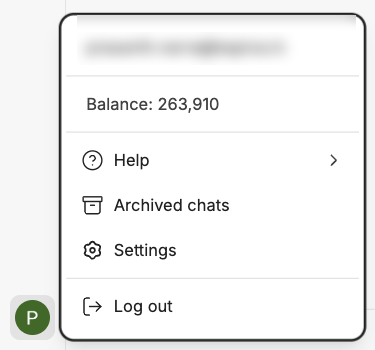
Your account menu.
Keyboard shortcuts
| Shortcut (Mac) | Does |
|---|---|
| ⌘ ⇧ O | New chat |
| ⌘ ⇧ S | Close or open the sidebar |
| ⌘ ⇧ M | Open Select a model |
| ⌘ ⇧ Y | Temporary Chat |
| ⌘ ⇧ U | Attach a file |
On Windows, use Ctrl instead of ⌘. More in Keyboard shortcuts.
Good to know
- Your chats are yours. Colleagues can't see them unless you share a link to one.
- Manas works in a desktop browser and in your phone's browser. Slack has its own way in: see Manas in Slack.
Next steps
- Your daily allowance: how much you can use.
- Write good requests: get better answers.