
What the cloud computer is
A private computer in the cloud that Manas agents use for you while you watch.
Your cloud computer is a real computer that lives in the cloud. A Manas agent uses it for you. It has three things:
- A Chrome web browser that stays signed in. Sign in to a site once and it is still signed in tomorrow.
- A folder of files. Downloads, clips, reports and anything the agent makes are kept here.
- A command line with ready-made tools. Python, ffmpeg (video and audio), yt-dlp (video downloads), ImageMagick (pictures), pandoc (document conversion), git and more.
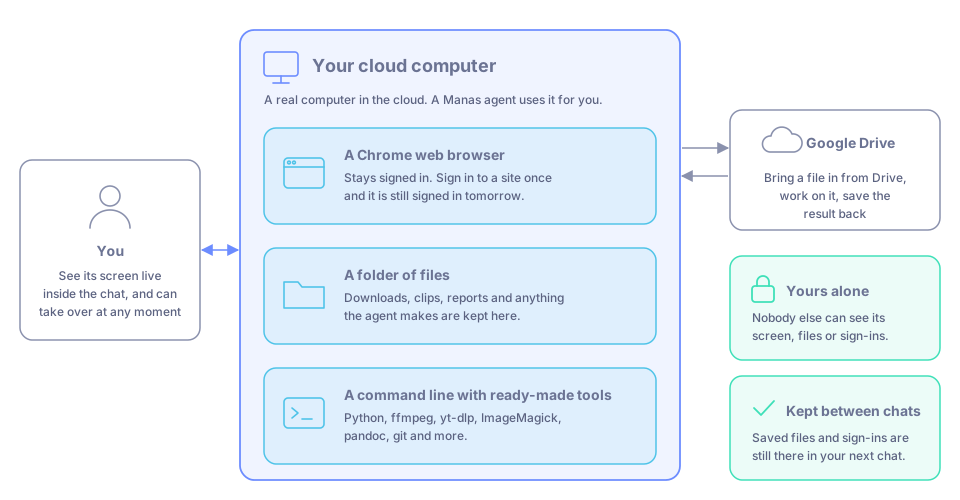
What is inside your cloud computer, and how it fits with you and your Google Drive.
You see its screen live inside the chat, and you can take over at any moment, for example to sign in to a site.
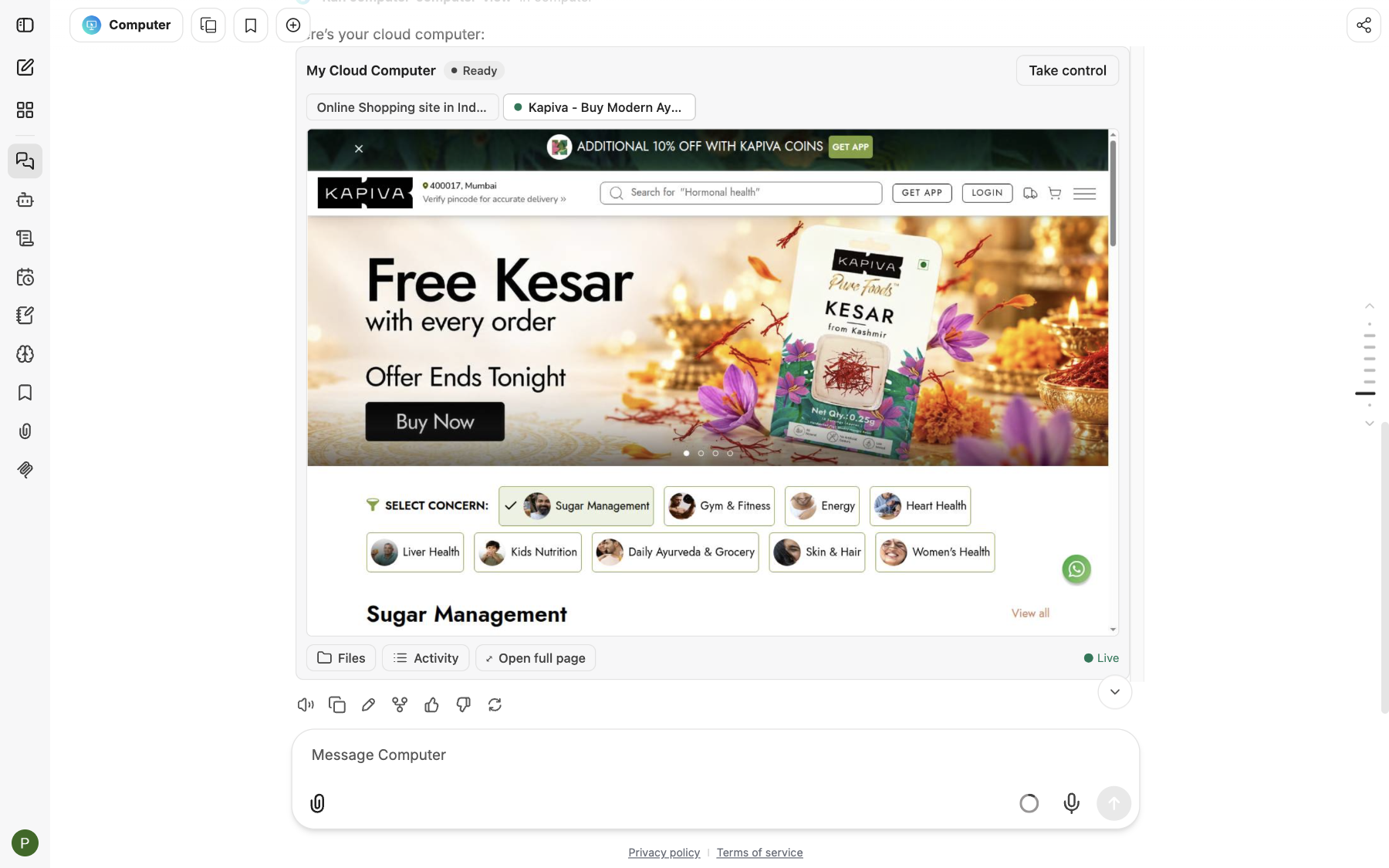
The live view sits inside your chat. The agent works; you watch.
What it is good for
- Jobs that need a real web browser. Read a page, collect prices, fill in a form, press a site's Export button.
- Making or changing files. Cut a clip from a video, turn a PDF into a Word file, make a CSV from a list of search results.
- Working on your Google Drive files. Bring a file in from Drive, work on it, and save the result back.
- Sites that need you to sign in. You sign in once yourself; the agent carries on after that.
Some things you can ask:
- "Open kapiva.in and list the products on the homepage with prices."
- "Make a CSV of the top 20 results for 'ayurvedic hair oil' on Amazon.in."
- "Download this YouTube video and cut the first 30 seconds into a clip: (link)"
- "Find the Diwali brief in my Drive and turn it into a PDF."
Who can use it
Every Manas user. There is nothing to install and nothing to set up. Each person gets their own computer, shared by all of their chats.
How to start
There are two ways to start:
- The Computer agent (recommended). It has been shared with everyone and is listed in the Agent Marketplace. Its instructions are written for the cloud computer, including handing sign-ins back to you.
- In any chat. Open MCP Servers under the message box and switch on Cloud Computer. The model you picked can then use your computer too. Use this for quick jobs; for anything that needs signing in, use the Computer agent.
With the Computer agent:
Open Agent Marketplace in the left rail and choose Computer. Or start a new chat, open Select a model at the top, and pick Computer under Agents.
Ask for what you need in plain words. See Your first request.
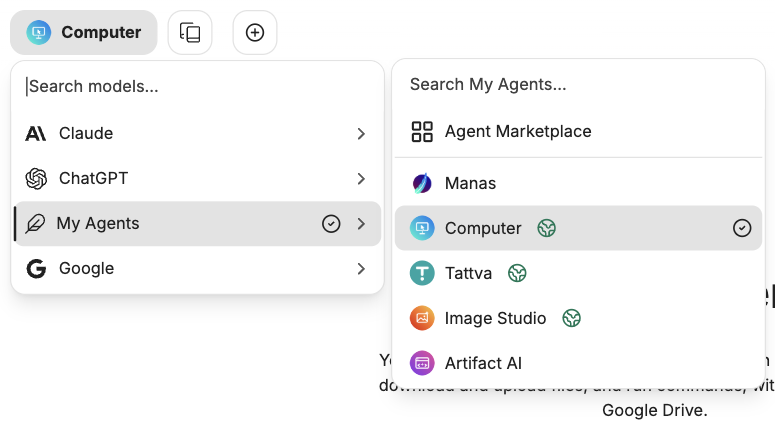
Pick Computer from the Agents list.
Good to know
- It is yours alone. Nobody else, and no other person's agent, can see its screen, its files or the sites you are signed in to. See Privacy and pausing.
- It is kept between chats. Files you save and sites you sign in to are still there in your next chat.
- It reaches the public internet only. It cannot open Kapiva's internal systems.
- The Computer agent never types passwords, one-time codes or card numbers. It asks you to do those steps yourself.
- Long tasks keep going in the background. A single command can run for up to 10 minutes. Longer work, such as converting many videos, runs as a background job for up to 4 hours; you can watch it under Activity → Jobs.
- Up to 25 computers run at once. If they are all busy, you wait in a short queue and yours starts by itself. See The live view.
- You don't need it for Google Drive alone. To search, read or create Drive files without a computer, use the Google Drive connector.
- In Slack, only in a DM. A Slack channel has no computer. How it compares with Run Code: Run Code, the cloud computer and your files.