
Privacy and pausing
Who can see your cloud computer, when it pauses, and what it keeps.
Only you can see it
Your cloud computer is yours alone. Nobody else, and no other person's agent, can see its screen, its files or the sites you are signed in to.
- The live view is only for you. A copied or forwarded link stops working after a few minutes. A full-page link works once, within 2 minutes.
- Download links are only for one file and work for 5 minutes.
- It is not shared with Slack channels. You use it through the Computer agent: in Manas on the web, or in a Slack DM with Manas.
- It reaches the public internet only, not Kapiva's internal systems.
- The agent never types passwords, one-time codes or card numbers. You type those yourself after Take control. See Signing in to sites.
- Your Google Drive access stays with Manas, encrypted. It never goes onto the computer.
Activity → Log under the live view lists everything agents and you did on your computer.
It pauses when idle
After 15 minutes with no agent work and nothing typed or clicked by you, your computer pauses, even if the live view is still open. A long command that is still running keeps it awake.
Your next request wakes it up. That usually takes 15 to 30 seconds, sometimes up to about 2 minutes.
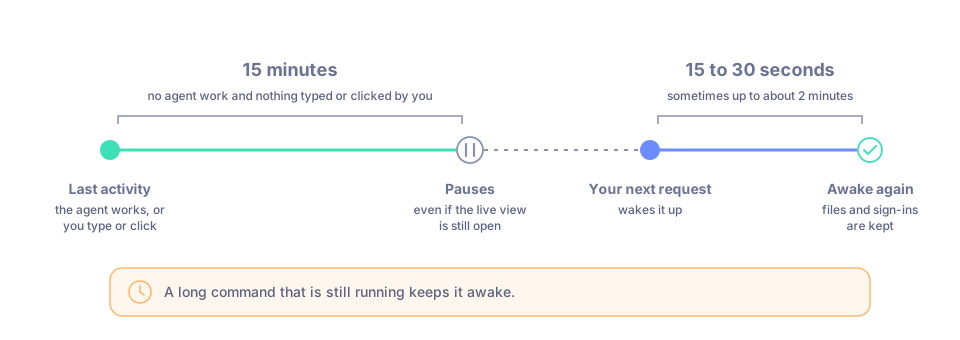
15 idle minutes pause the computer; your next request wakes it up.
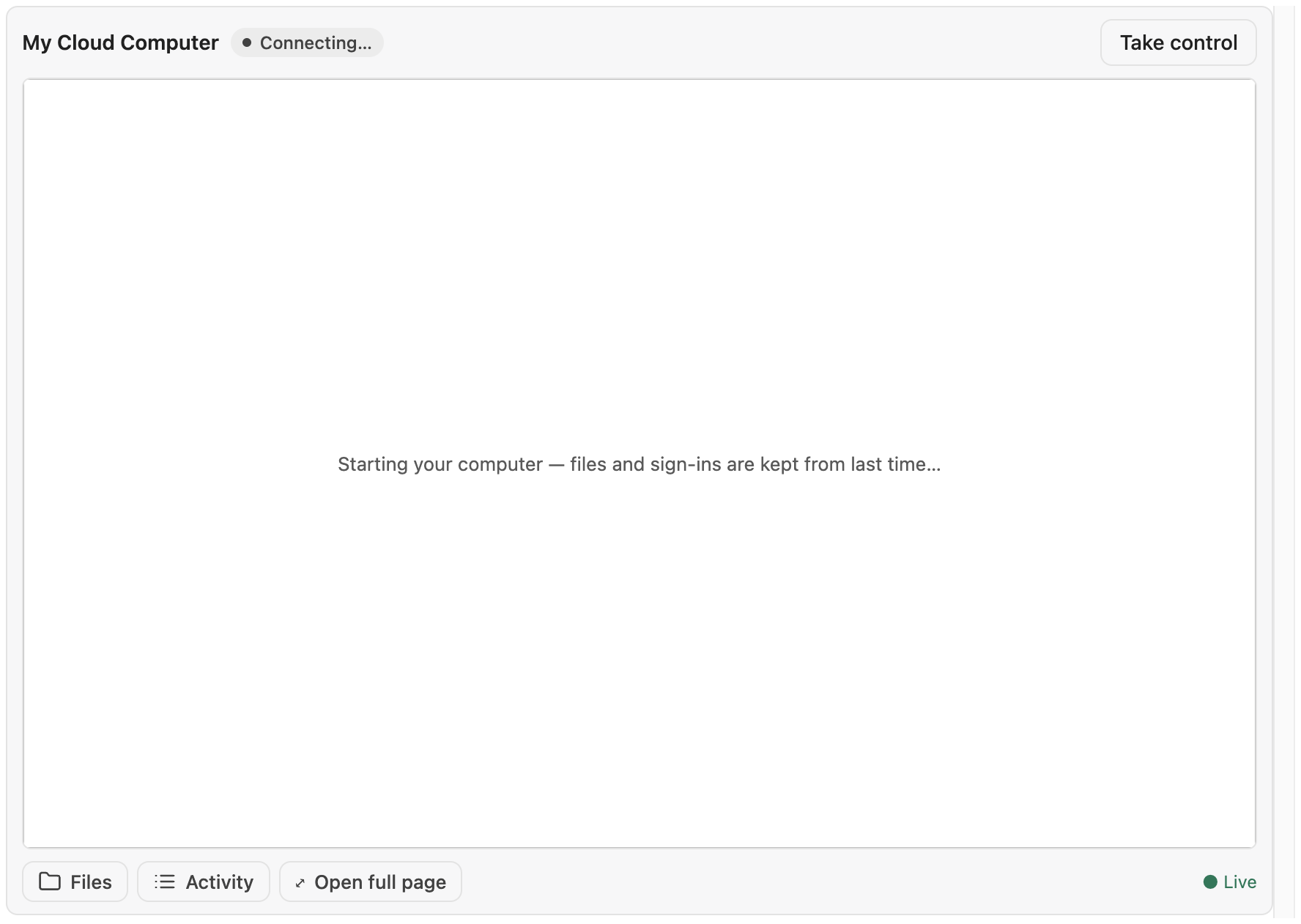
Waking up after a pause. Your files and sign-ins are kept.
What is kept and what is lost
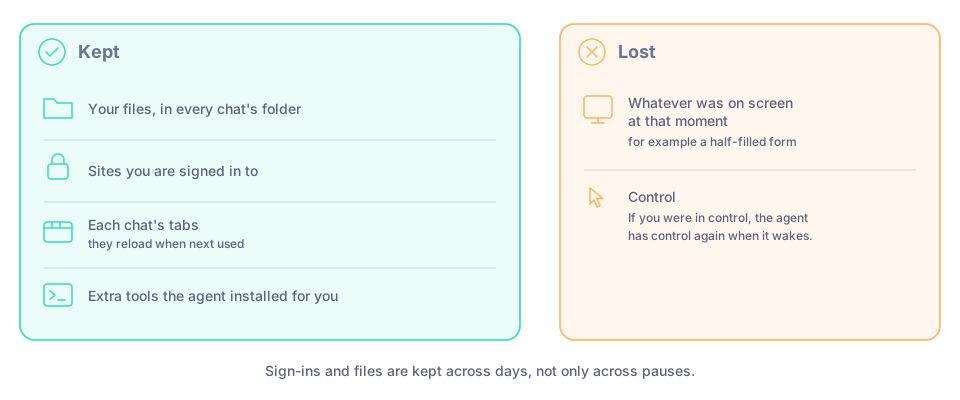
What a pause keeps and what it loses.
| Kept | Lost |
|---|---|
| Your files, in every chat's folder | Whatever was on screen at that moment, for example a half-filled form |
| Sites you are signed in to | Control: if you were in control, the agent has control again when it wakes |
| Each chat's tabs (they reload when next used) | |
| Extra tools the agent installed for you |
Sign-ins and files are kept across days, not only across pauses.
Good to know
- Tools the agent installs stay. The agent can install extra Python or Node tools for you; they stay installed and work in every chat.
- To remove Manas's access to your Drive, click Disconnect in Files → Drive, or ask the agent to "disconnect my Google Drive".
- To delete a file, click ⋯ → Delete on it in Files.