
Your first request
Ask the Computer agent for something, wait for the computer to start, and watch it work.
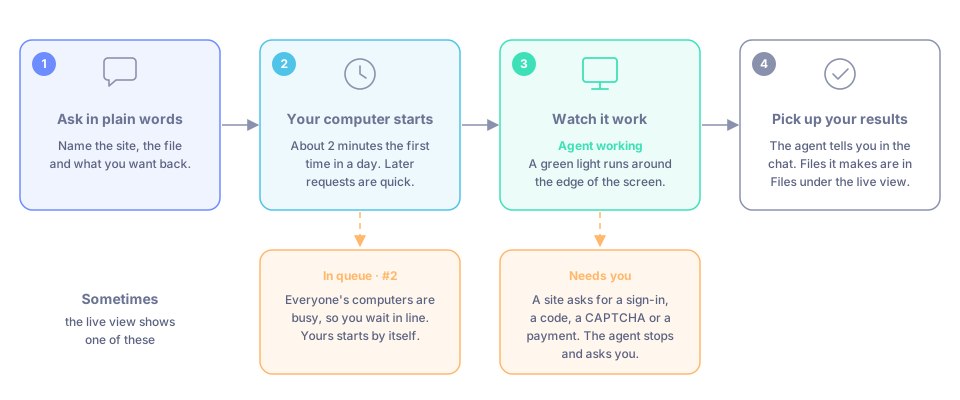
Ask, wait for it to start, watch it work, pick up your results.
Start a chat with the Computer agent
Start a new chat, open Select a model at the top and pick Computer under Agents, or choose it in the Agent Marketplace. You can also switch on Cloud Computer under MCP Servers in a chat with any model, but the Computer agent is better for sign-ins. See What the cloud computer is.
Ask in plain words
Say what you want done, as you would to a colleague. Name the site, the file and what you want back.
- "Open kapiva.in and list the products on the homepage with prices."
- "Convert the PDF in this chat's files to Word."
- "Download this YouTube video and cut the first 30 seconds into a clip: (link)"
Before it starts a series of actions, the agent says in one line what it is about to do.
Wait for your computer to start
The first time in a day, your computer can take about 2 minutes to start. The live view shows Connecting…, with the note that your files and sign-ins are kept from last time. Later requests are quick.
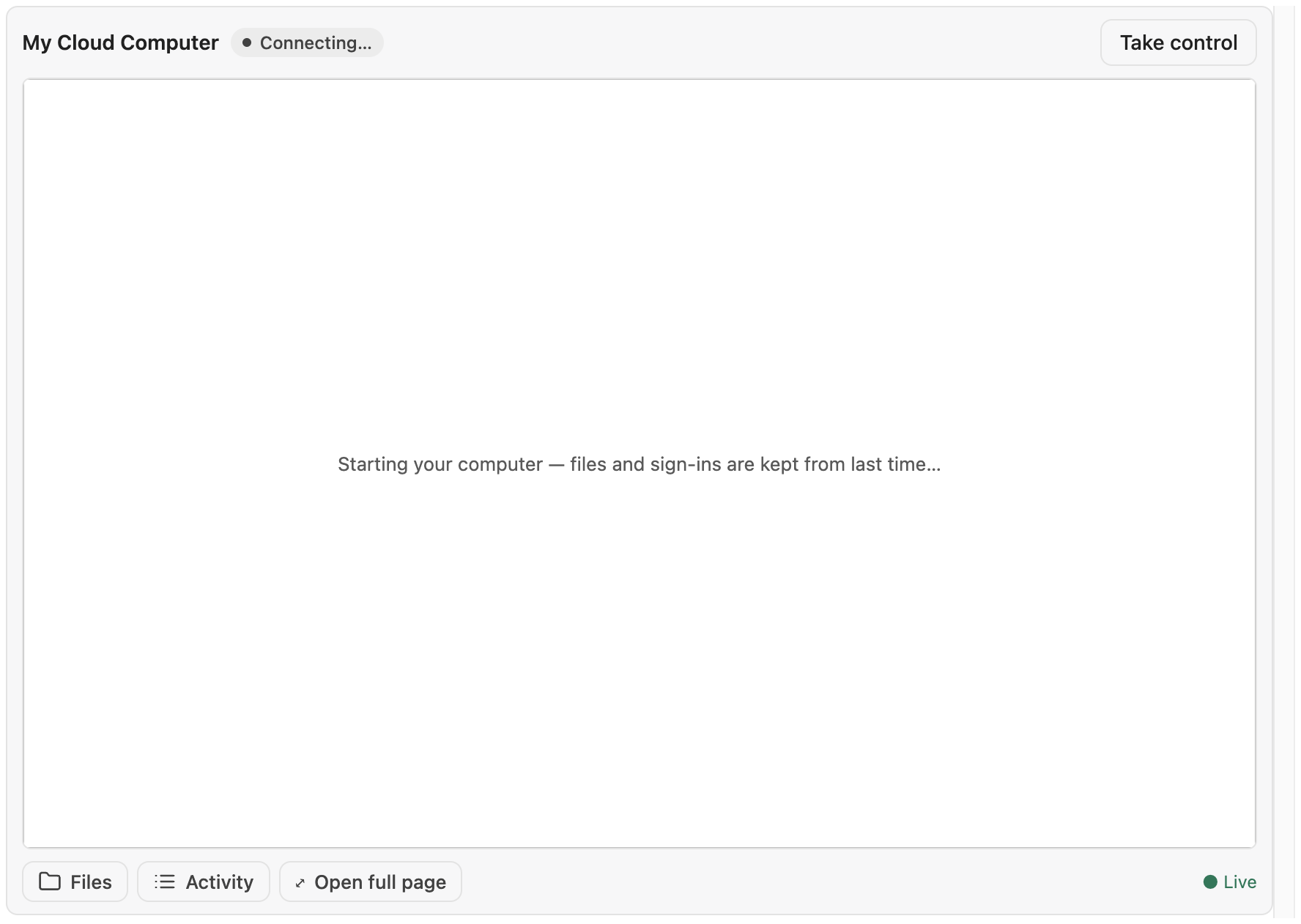
While the computer starts, the live view says so. You don't need to do anything.
Watch it work
When the computer is ready, My Cloud Computer shows the live screen in the chat. The status next to the title reads Agent working and a green light runs around the edge of the screen. Watching does not interrupt the agent.
If you don't see the live view, ask "Show me the computer."
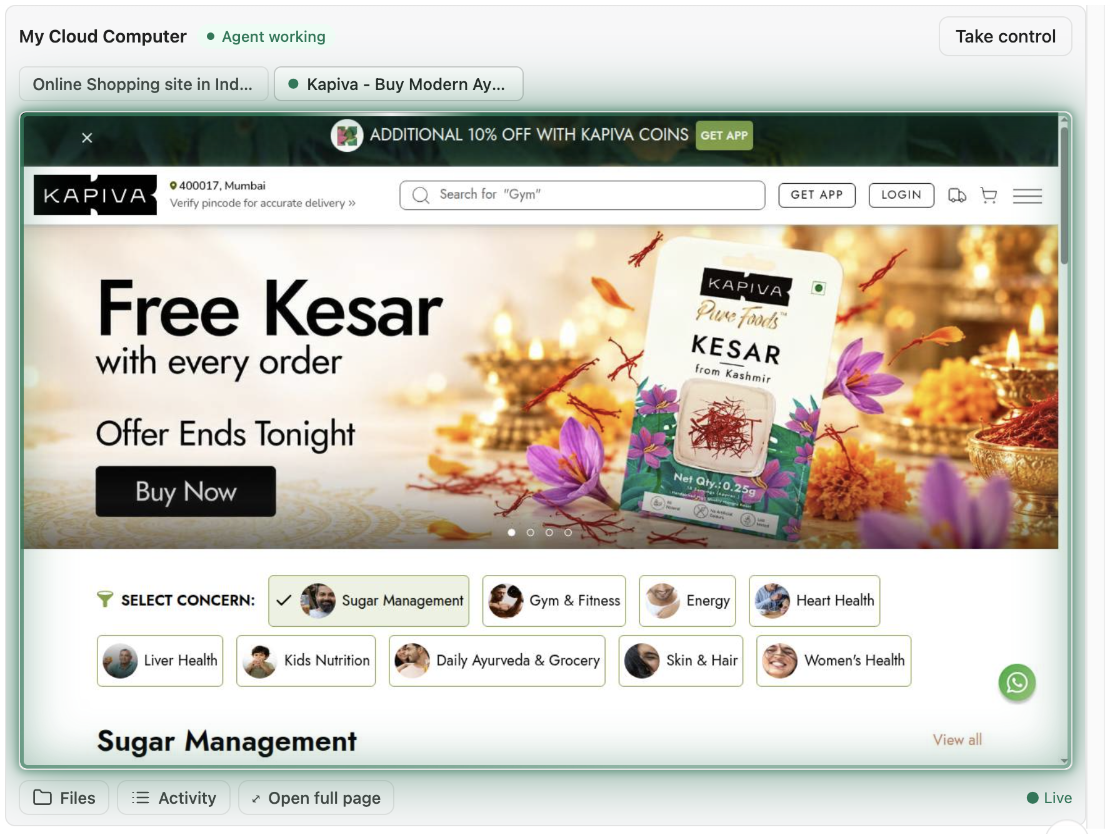
Agent working: the agent is acting in this chat right now.
Pick up your results
The agent tells you in the chat what it found or made. Files it makes are in Files under the live view. See Files and Google Drive.
What you see while it works
- The agent's reply. It explains what it is doing and what it found.
- Tool steps. Each action the agent takes (open a page, click, run a command) shows as a small collapsed row in its reply. You can open one to see the details, or ignore them.
- The live view. The screen of your computer, updating as the agent works. It keeps updating in later replies in the same chat; the agent does not open a new one each time.
If the site needs you
When a site asks for a sign-in, a one-time code, a CAPTCHA or a payment, the agent stops and asks you. The live view turns amber and says Needs you, with the reason. See Signing in to sites.
Good to know
- If everyone's computers are busy, you wait in line. The live view shows In queue · #2 (your place). Your computer starts by itself when one frees up. When the live view turns live, ask the agent to continue. If you leave for more than 5 minutes without the live view open, your place is dropped; just ask again.
- "Waiting for cloud capacity…" means your computer is starting but more room is still being made for it. It usually clears within a few minutes. If not, it stops after 6 minutes and you can ask again.
- Every chat shares one computer. You can start a second chat with the Computer agent while the first is still working. Each chat has its own browser tabs.
If something goes wrong
- It has said it is starting for more than 3 minutes. Ask "Show me the computer" again.
- The agent says the cloud computer is not enabled for your account. Ask the Manas team for access.
- See Troubleshooting for more.