
The live view and taking control
Watch your cloud computer in the chat, take over to sign in, and hand it back to the agent.
When the agent starts using the computer, it shows My Cloud Computer in the chat: the live screen of the page it is working on. If you don't see it, ask "Show me the computer."
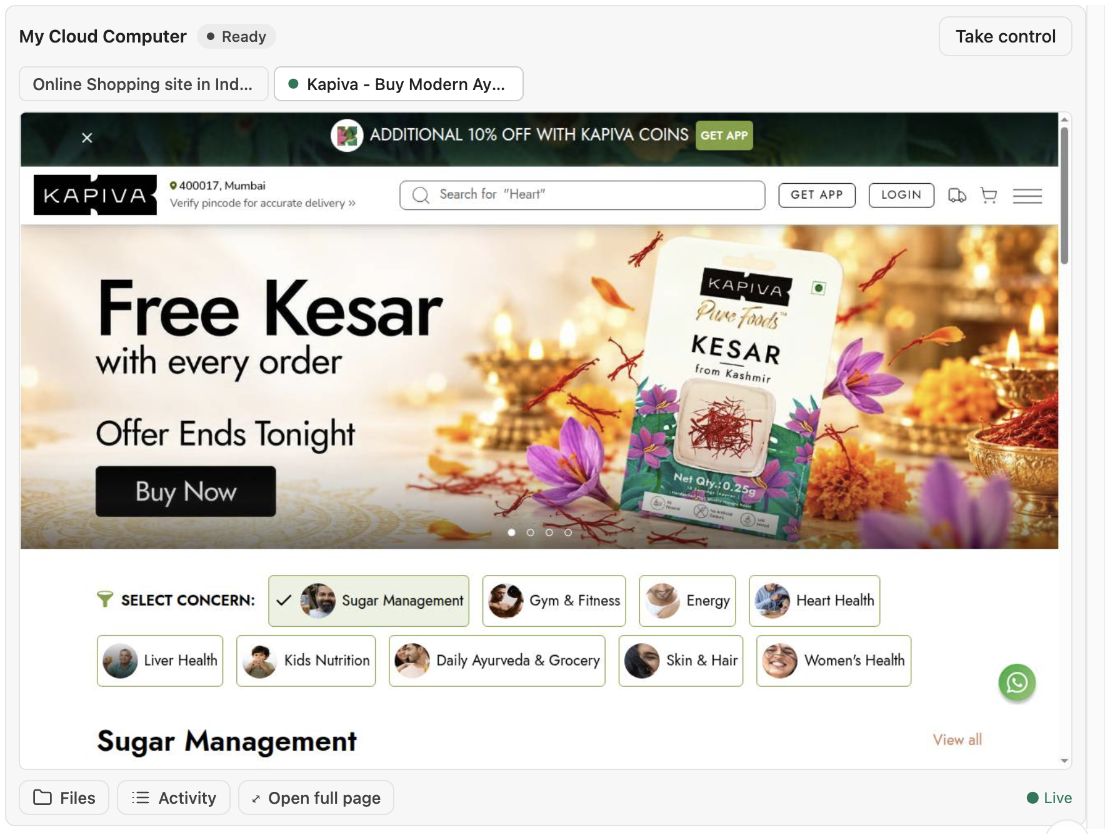
The parts of the live view.
The parts of the live view
| Part | What it does |
|---|---|
| Status (next to the title) | What is happening now. See The status. |
| Tabs (under the title) | This chat's open browser tabs. ● marks the one the agent is using. |
| Screen | What the agent sees, live. Watching does not interrupt it. |
| Take control | Pauses the agent and gives you the mouse and keyboard. |
| Hand back to agent | Gives control back. The agent carries on from where you left the page. |
| Files | The files on your computer, and your Google Drive. See Files and Google Drive. |
| Activity | What has run on your computer. See Activity. |
| ⤢ Open full page | Opens the live view in a whole browser window. See A bigger view. |
The status
| Status | What it means |
|---|---|
| Agent working (green) | The agent is acting in this chat right now. A green light runs around the edge of the screen. |
| Ready (grey) | The agent is not doing anything on the computer for this chat. |
| Needs you (amber) | The agent asks you to take over, and says why. |
| You're in control (blue) | You have the mouse and keyboard. A solid blue frame surrounds the screen. The agent waits. |
| In queue · #2 (amber) | All cloud computers are busy. Yours starts by itself when one frees up. |
| Live view ended | This view is no longer live. Click Show my computer. |
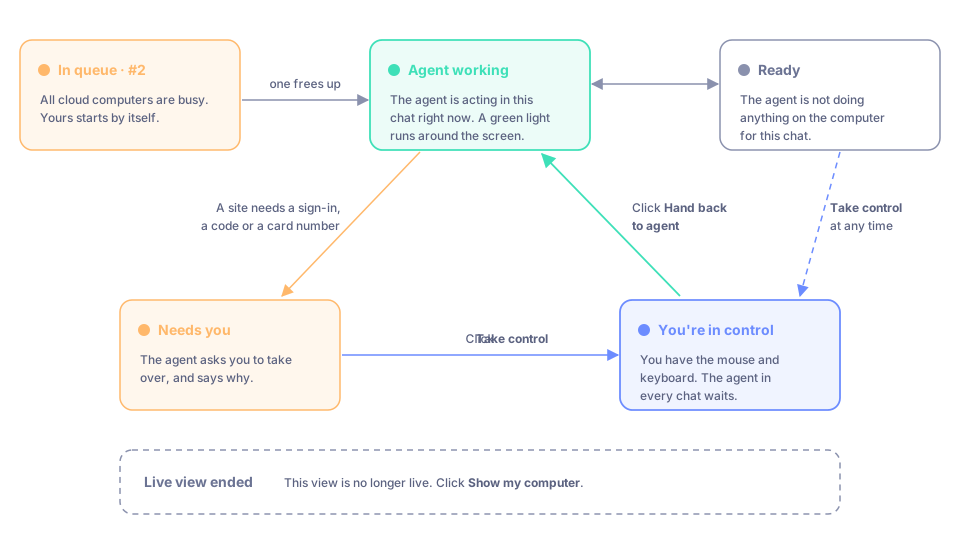
The statuses and what moves you from one to the next.
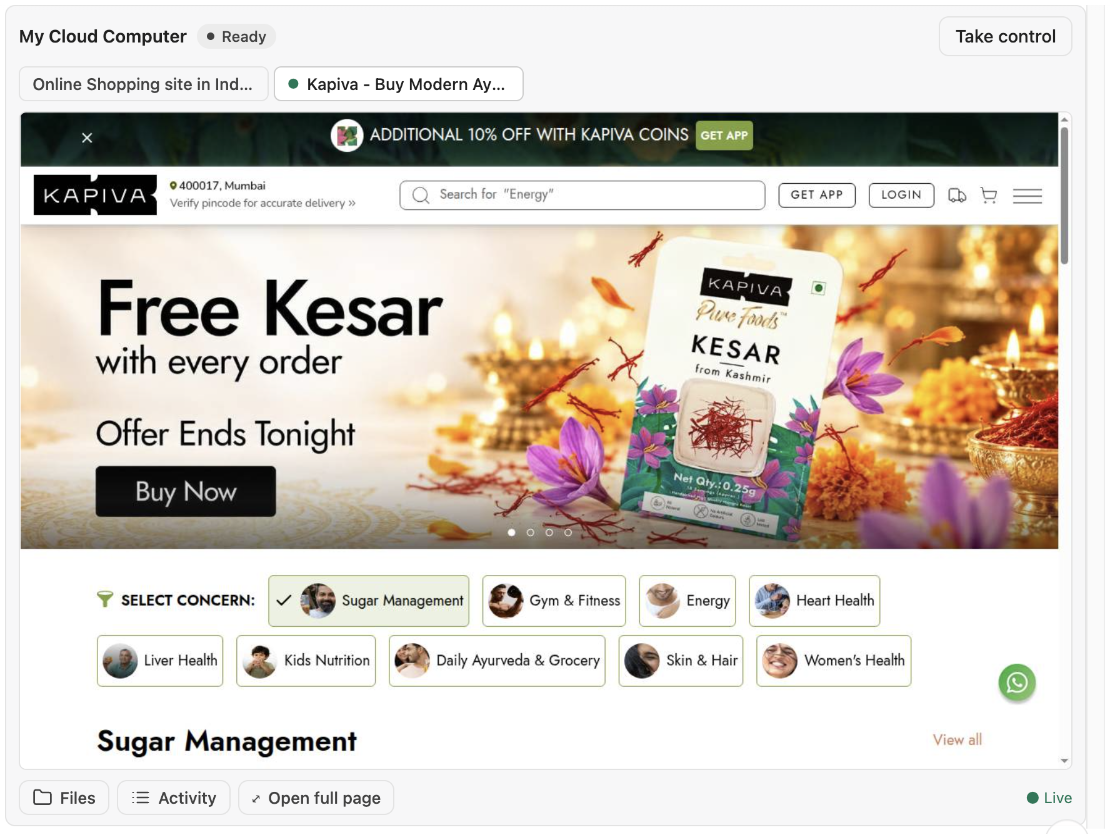
Ready: nothing is happening for this chat.
Signing in to sites
The agent never types passwords, one-time codes or card numbers. When a site needs one, the live view turns amber and says Needs you, with the reason, for example "The agent needs you to sign in to instagram.com."
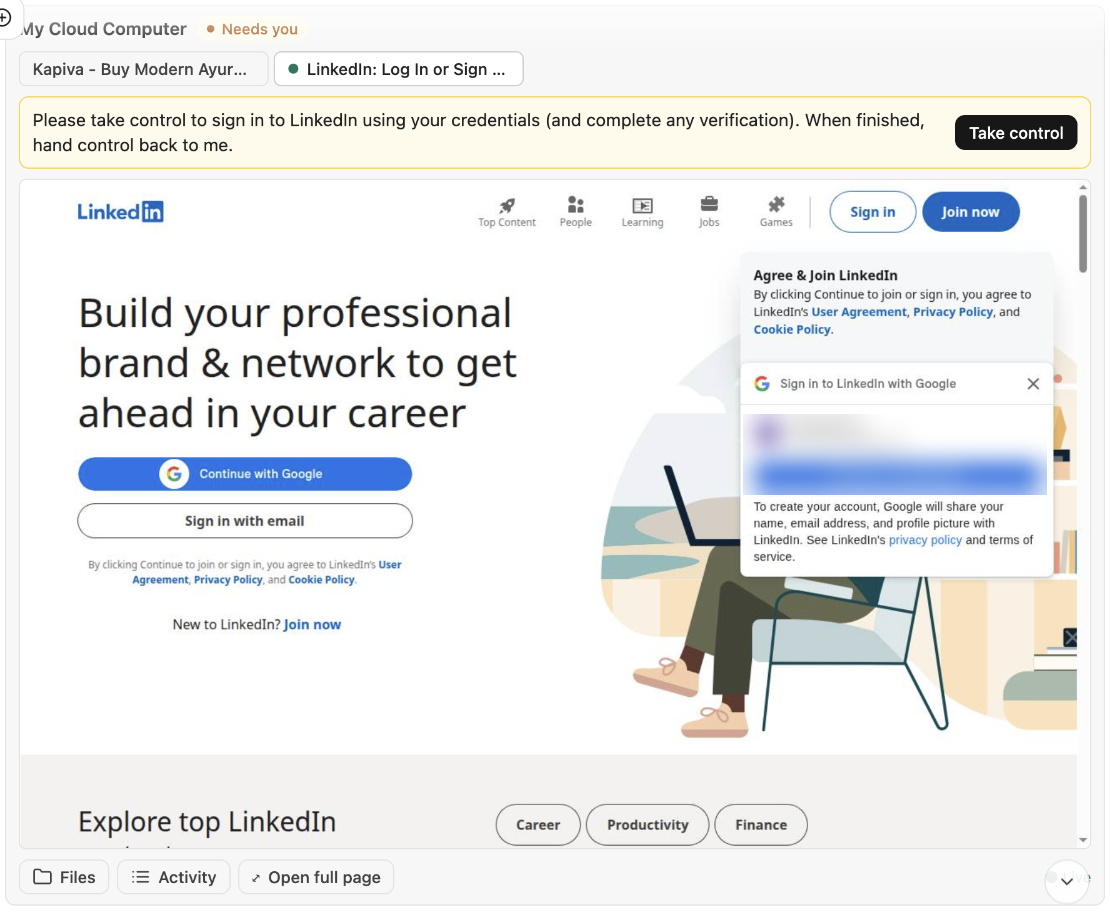
Needs you: the agent is waiting for you.
Click Take control.
Sign in on the screen as you normally would. You can type or paste. Your own browser's password manager cannot fill it in.
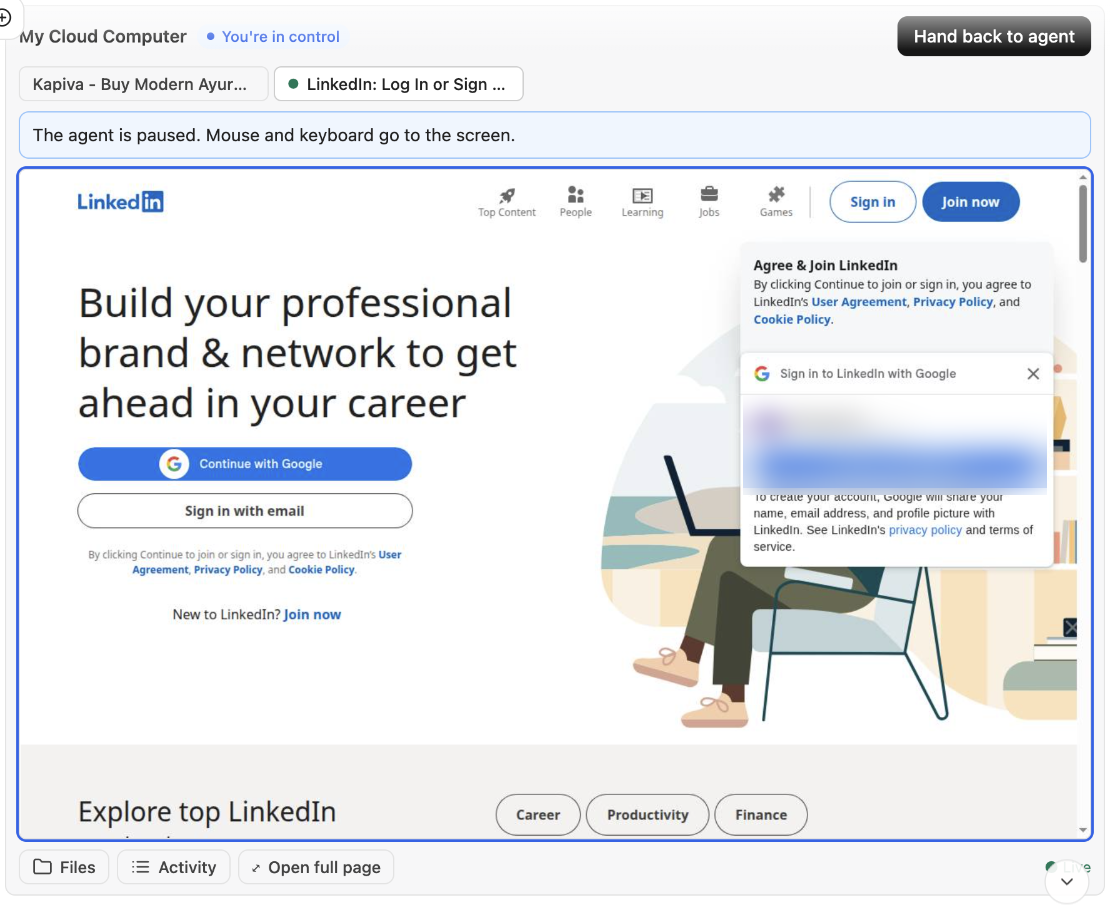
You're in control: what you type and click goes to the screen.
Click Hand back to agent. If the agent asked for your help, it carries on in the same reply. Otherwise the chat sends "I've handed back the computer - please continue." for you.
You stay signed in next time, in every chat, because it is the same computer.
Taking control at any time
You don't have to wait to be asked. Click Take control whenever you want to do something yourself. If the agent is in the middle of a step, that step finishes first (usually in under a second). The agent then stops and says it will continue after you press Hand back to agent.
While you are in control, the agent in every chat waits until you hand back. Hand back to agent is the only way out: pressing Esc goes to the page, not to the live view.
Tabs: one set per chat
Each chat has its own browser tabs (up to 4 per chat, 10 on the whole computer). Two chats can work at the same time without getting in each other's way. The live view in a chat shows only that chat's tabs.
- ● marks the tab the agent is using. The screen follows the agent when it switches or opens a tab.
- To look at another tab, click it. The screen shows that tab while the agent carries on in its own. A line under the tabs says which tab the agent is on.
- Follow agent brings the screen back to the agent's tab.
- To work in another tab, click Take control first, then click the tab. When you hand back, the agent carries on in that tab.
- Hover over a tab to see which site it is.
Looking at a tab never moves the agent. Files and sign-ins are shared by all your chats.
Activity
Click Activity under the live view to see what has run on your computer. It shows this chat; tick All chats for the whole computer.
- Runs: the agent's recent commands, with their output. Click one to see all of it.
- Jobs: long tasks running in the background, with their latest output. Cancel stops one; press it twice to confirm.
- Log: everything agents and you did: the time, the chat, the action and the result.
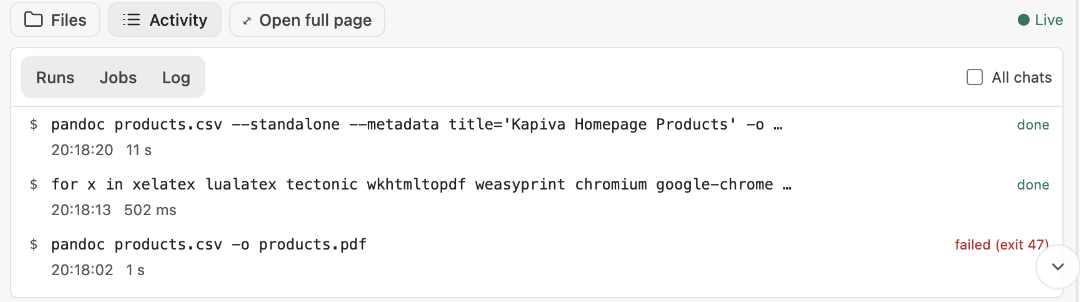
Activity shows what the agent ran.
A bigger view
Click ⤢ Open full page. It copies a link; paste it into a new browser tab to watch, and take control, in the whole window. You can also ask the agent for "the full-page link".
- The link works once, within 2 minutes, and only for you.
- The live view in the chat then says Continues in full-page view.
- The full page cannot send messages to your chat. After you hand back there, it says "Handed back — tell the agent in your chat to continue." Go back to the chat and ask it to continue.
Good to know
- The live view is only for you. A copied or forwarded link stops working after a few minutes.
- One live view per chat. If the agent shows the computer again later in the same chat, the older view says Live view ended.
- It follows your computer's light or dark setting, not the theme you picked in Manas.
If something goes wrong
- Live view ended. Click Show my computer. On the full page, ask in the chat instead.
- "This link has expired or was already opened." Click ⤢ Open full page in the chat's live view again for a new link.
- The agent seems stuck after you handed back. Send "please continue".
- The footer says Reconnecting…. Wait a few seconds; it retries by itself.